New Feature — 2026

Online Appointment Booking
for Your Queue

Let customers book time slots online before visiting. On arrival day, staff checks them in with one click — and they join the same queue as walk-ins. Zero disruption to your existing workflow.

Cloud QMS
WhatsApp QMS
No extra charge
Enable in 1 click

Stage A — Admin Setup

Enable feature, configure time slots, block holidays. One-time setup from your admin dashboard.

Stage B — Customer Books Online

Customer opens booking link, selects date & time slot, fills details. Confirmed instantly.

Stage C — Staff Check-In

Customer arrives → staff searches → one-click check-in → queue ticket created with 📅 Appt badge.

Overview

Two Ways to Queue — One Powerful System

Walk-in and appointment customers coexist in the same queue. Staff workflow stays the same — Next, Skip, Recall, Push all work identically for both types.

🚶 Walk-In Queue Existing

  • Customer joins queue on the spot via QR code
  • No booking needed — first come, first served
  • Queue ticket generated immediately
  • Customer gets live queue status page
  • Works via QR code or shared URL

📅 Appointment Queue New

  • Customer books time slot in advance online
  • Configurable slots — time range + max capacity
  • Staff checks in customer on arrival day
  • Queue ticket created with 📅 Appt badge
  • Late arrivals enter normal queue (no priority)
Key point: Both walk-in and appointment tickets end up in the same Waiting Queue on the staff's control page. The buttons (Next, Skip, Recall, Cut Queue) work identically for both. The only visual difference is the purple appointment badge.
How It Works

Three Simple Stages

Admin configures once, customers book online, staff checks in on arrival day. That's it.

⚙️ Stage A — Admin Setup One-Time

1
Enable appointment feature
Go to Settings → Appointment Settings → toggle ON. The booking page URL is generated automatically for your company.
2
Configure time slots
Define start time, end time, and max bookings per slot. Example: 11am–12pm (max 4), 2pm–3pm (max 4). Add unlimited slot rows.
3
Block dates (optional)
Mark public holidays or closure days as unavailable. Customers see "not available" for blocked dates. Add reason labels for reference.

📱 Stage B — Customer Books Online

1
Open booking page
Customer visits the appointment booking URL — shared by staff via WhatsApp, linked from your website, or printed on a poster.
2
Select date and time slot
Calendar date picker shows available dates. Time slots display remaining capacity (e.g. "3 of 4 slots left"). Fully booked slots are greyed out automatically.
3
Fill in personal details
Name, IC or passport number, phone number, and a security captcha to prevent bots.
Appointment confirmed
Customer sees confirmation screen with date, time, and location. Advised to screenshot for reference on arrival day.

✅ Stage C — Staff Check-In Arrival Day

1
Customer arrives
Customer walks in with their appointment confirmation. Just their name or IC number is enough for staff to locate them.
2
Staff searches in appointment panel
On Queue Control, the Appointment Check-In panel shows all today's bookings. Staff types the IC or name to filter instantly.
3
One-click check-in
Staff clicks "Check In" — the system creates a queue ticket with 📅 Appt badge automatically. Appears in the waiting queue immediately.
4
Serve as normal
Staff clicks Next to call the customer. Queue display and TTS announcement work exactly like walk-in tickets. No new workflow to learn.

⚠️ Late Arrival & No-Show

⏰ Late arrival (within 30 min) Staff can still check in the customer. System flags as "late arrival" and the ticket enters normal queue instead of priority.
✕ No-show Appointment stays as "booked" in the system. Staff can leave it or manually cancel. System can also auto-expire.
Comparison

Walk-In vs Appointment — Side by Side

Both flows coexist in the same system. After check-in, appointment tickets merge into the same waiting queue as walk-ins.

Aspect Walk-In Queue Appointment Queue New
How customer joinsScans QR code or opens queue link on the spotBooks online in advance via appointment page
Info requiredName, phone, pax, service typeName, IC number, phone, date, time slot
Ticket createdImmediately after submitting formWhen staff clicks "Check In" on arrival day
Queue priorityFirst-come, first-servedAppointment holders can be given priority (configurable)
Badge in queueWalk In📅 Appt
Live status pageYes — customer gets live status URLYes — generated at check-in, staff can copy & share
Staff workflowNo action needed — ticket auto-appearsSearch by IC/name → Check In → ticket appears
Late arrivalN/AAfter 30 min, loses priority — enters normal queue
See It In Action

Real Screenshots From the System

Every screen customers and staff will actually see — from booking to check-in to calendar management.
Booking Page
E-Ticket
Queue Control
Admin Settings
Appt List
Calendar
KPI Dashboard
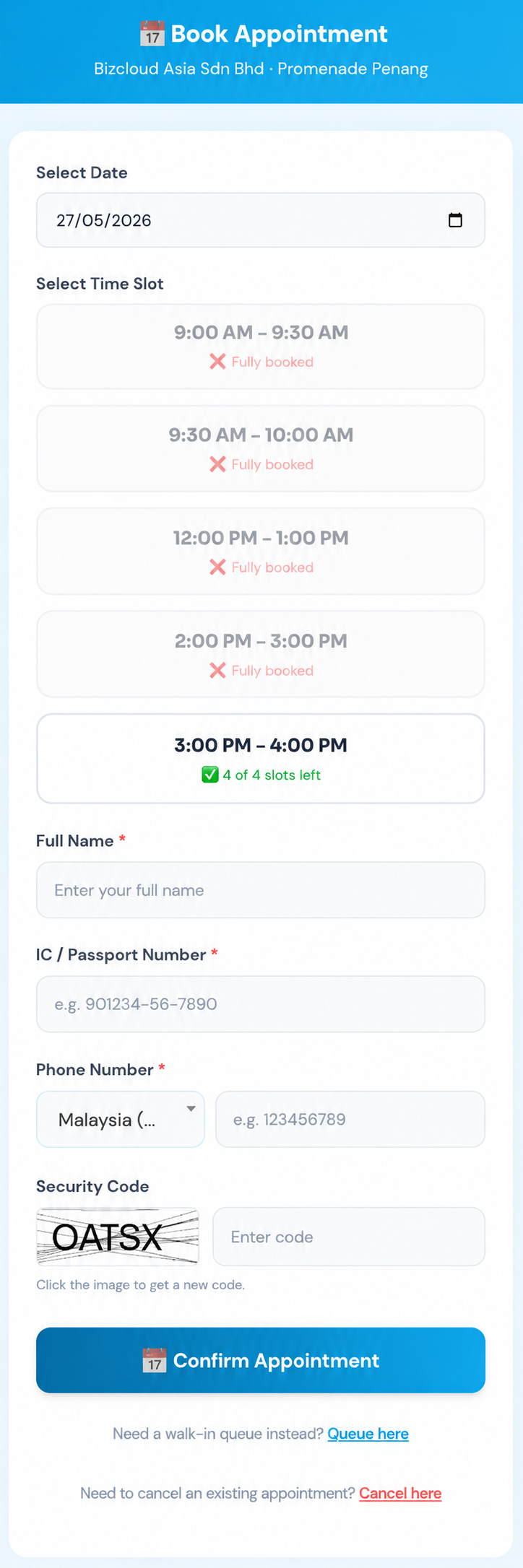
QMS Appointment Booking Page

📱 Customer Booking Page

The page customers open to book their appointment. Clean, mobile-first design — works on any phone without an app download.

  • Date pickerCustomer selects their preferred date — blocked dates are automatically hidden
  • Live slot availabilityShows remaining capacity per slot (e.g. "4 of 4 left"). Fully booked slots show ✗ Fully booked
  • Personal details formFull name, IC / passport number, phone with Malaysia country code selector
  • Security captchaPrevents bot/spam bookings automatically
  • Walk-in alternativeLink to normal queue for customers who prefer walk-in instead
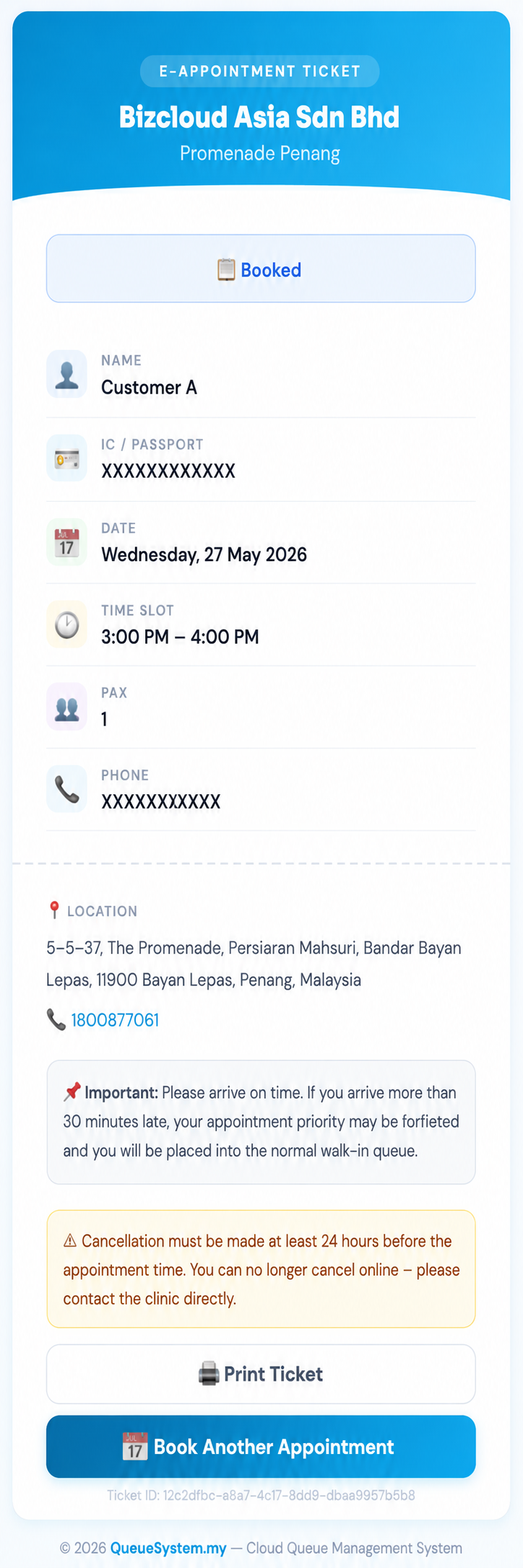
QMS E-Appointment Ticket

🎫 E-Appointment Ticket

After booking is confirmed, customers see their digital e-ticket. They can screenshot it or print it to bring on arrival day.

  • Booking summaryName, IC, date, time slot, pax, phone — all in one clear view
  • Location & contactYour business address and phone displayed on the ticket
  • Late arrival warningAutomatically reminds customers that arriving 30+ min late forfeits priority
  • Cancel from ticketCustomers can cancel their appointment directly from the e-ticket page (subject to your cancellation policy)
  • Persistent linkThe e-ticket URL uses a unique token — customers can revisit it anytime to check their appointment status
  • Company info displayedYour business address and contact number are shown on the ticket for easy reference
  • Print & re-bookPrint Ticket button + Book Another Appointment for repeat visits
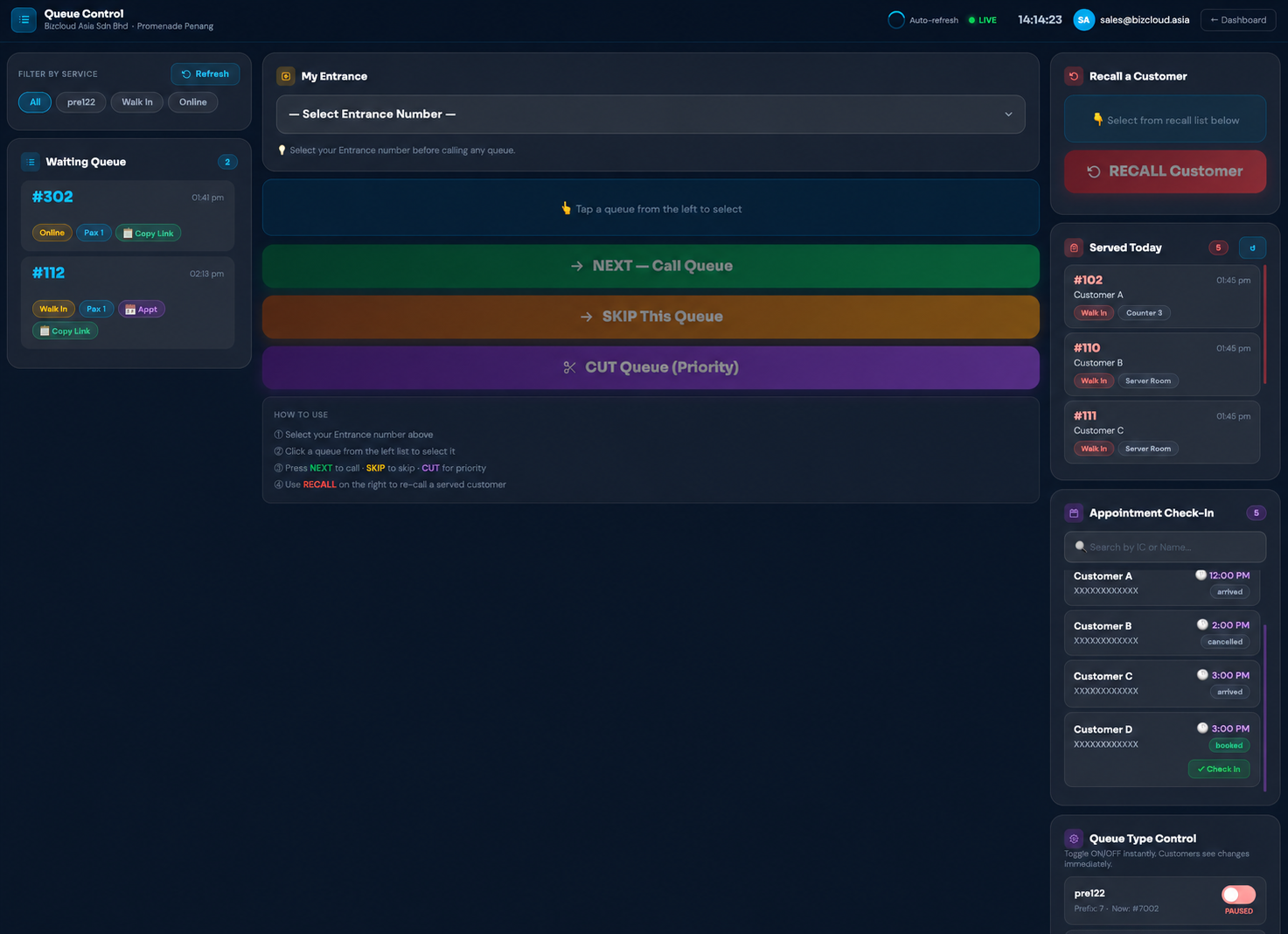
QMS Queue Control — Appointment Check-In panel

🖥️ Queue Control — Appointment Check-In

The right column of the Queue Control page shows the Appointment Check-In panel. Staff uses this to find and check in arriving customers with one click.

  • Today's appointments listedAll bookings for the day — customer name, IC, time slot, status at a glance
  • Search by IC or nameType to instantly filter — find any customer in seconds
  • Status badgesBooked / Arrived / Cancelled shown per customer
  • One-click Check InCreates a queue ticket with 📅 Appt badge — appears in waiting queue immediately
  • 📅 Appt badge in queue listTicket #112 shows Appt badge so staff instantly identifies appointment customers
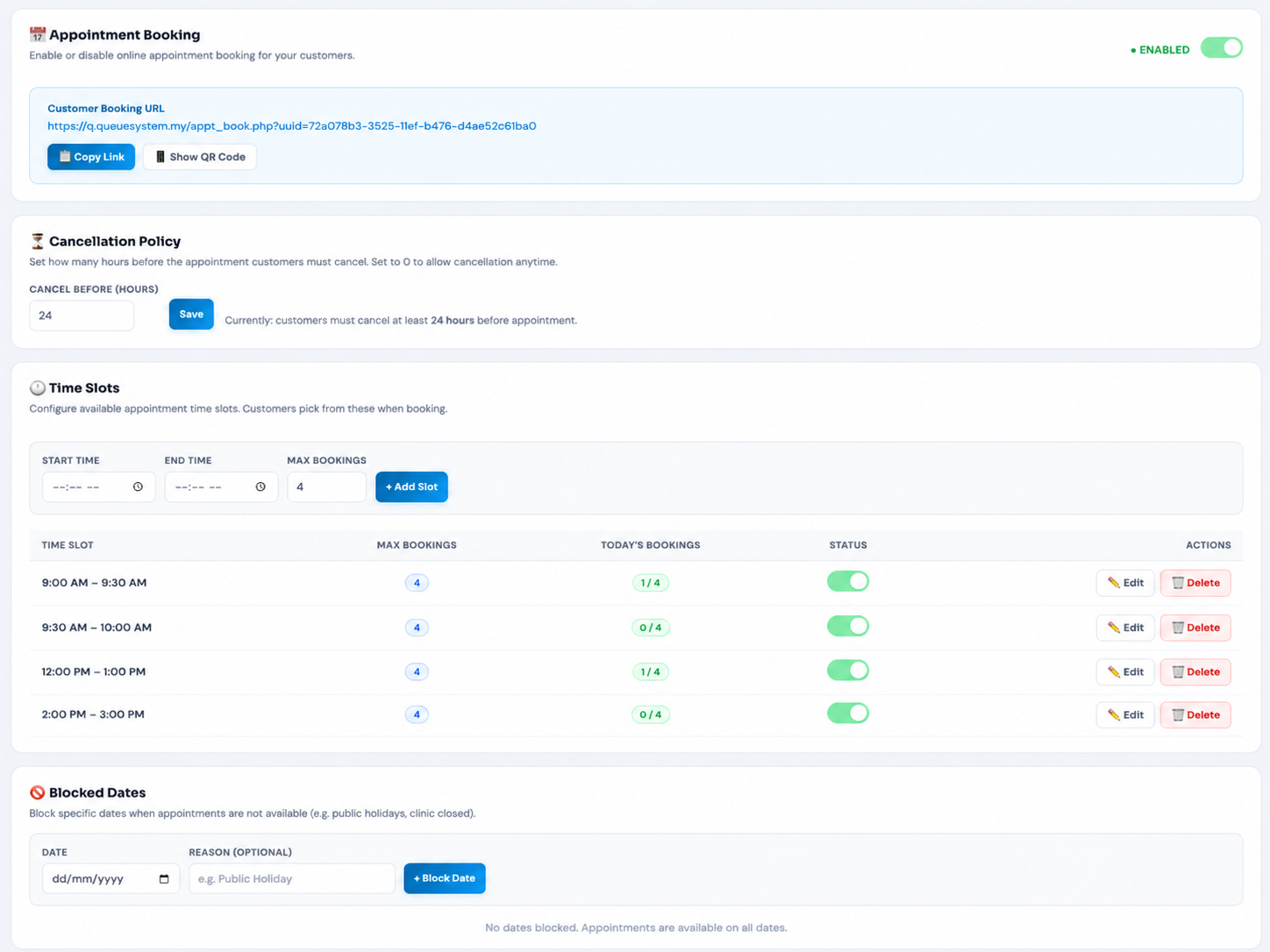
QMS Appointment Settings Page

⚙️ Admin — Appointment Settings

One-time setup from the admin dashboard. Enable the feature, configure time slots, set cancellation policy, and block dates — all without touching any code.

  • Enable / Disable toggleOne-click ON/OFF — customers see no booking page when disabled
  • Booking URL + QR Code generatorAuto-generated link + printable QR code — place at counter or entrance for instant scanning
  • Cancellation policySet how many hours before appointment customers can cancel (default 24 hrs). Set to 0 to allow anytime.
  • Time slots tableAdd start/end time + max bookings. See today's bookings count per slot. Edit or delete anytime.
  • Blocked datesBlock any date — enter date + optional reason. Customers see "not available" on blocked dates
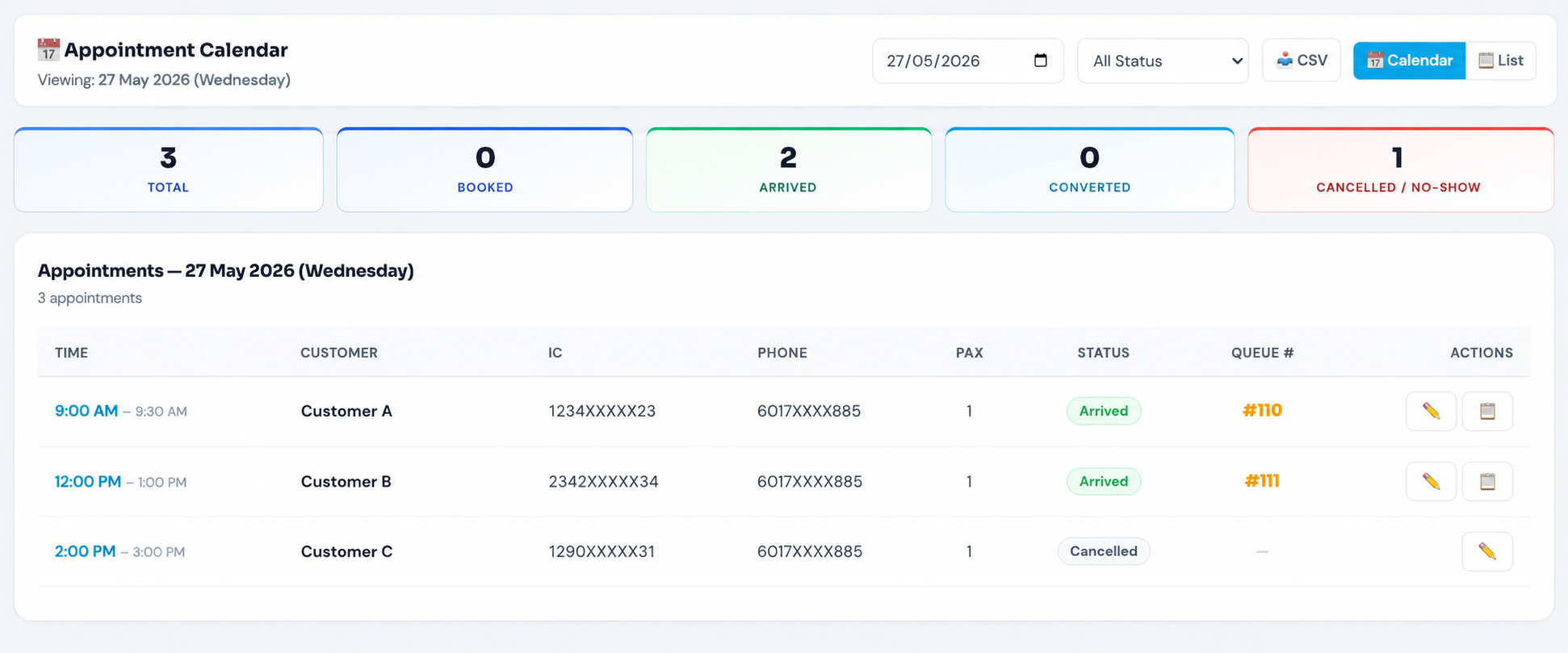
QMS Appointment List View

📋 Appointment List View

A full day's appointment list in table format. Managers get a clear picture of all bookings, statuses, and queue outcomes at a glance.

  • Summary tilesTotal / Booked / Arrived / Converted / Cancelled count at the top
  • Full appointment tableTime, customer name, IC, phone, pax, status, and linked queue number
  • Status colour codingArrived (green), Booked (blue), Cancelled (grey) — clear at a glance
  • Queue number linkAppointment → Queue # #110, #111 — traceable from booking to service
  • CSV exportDownload the full day's appointment data for records
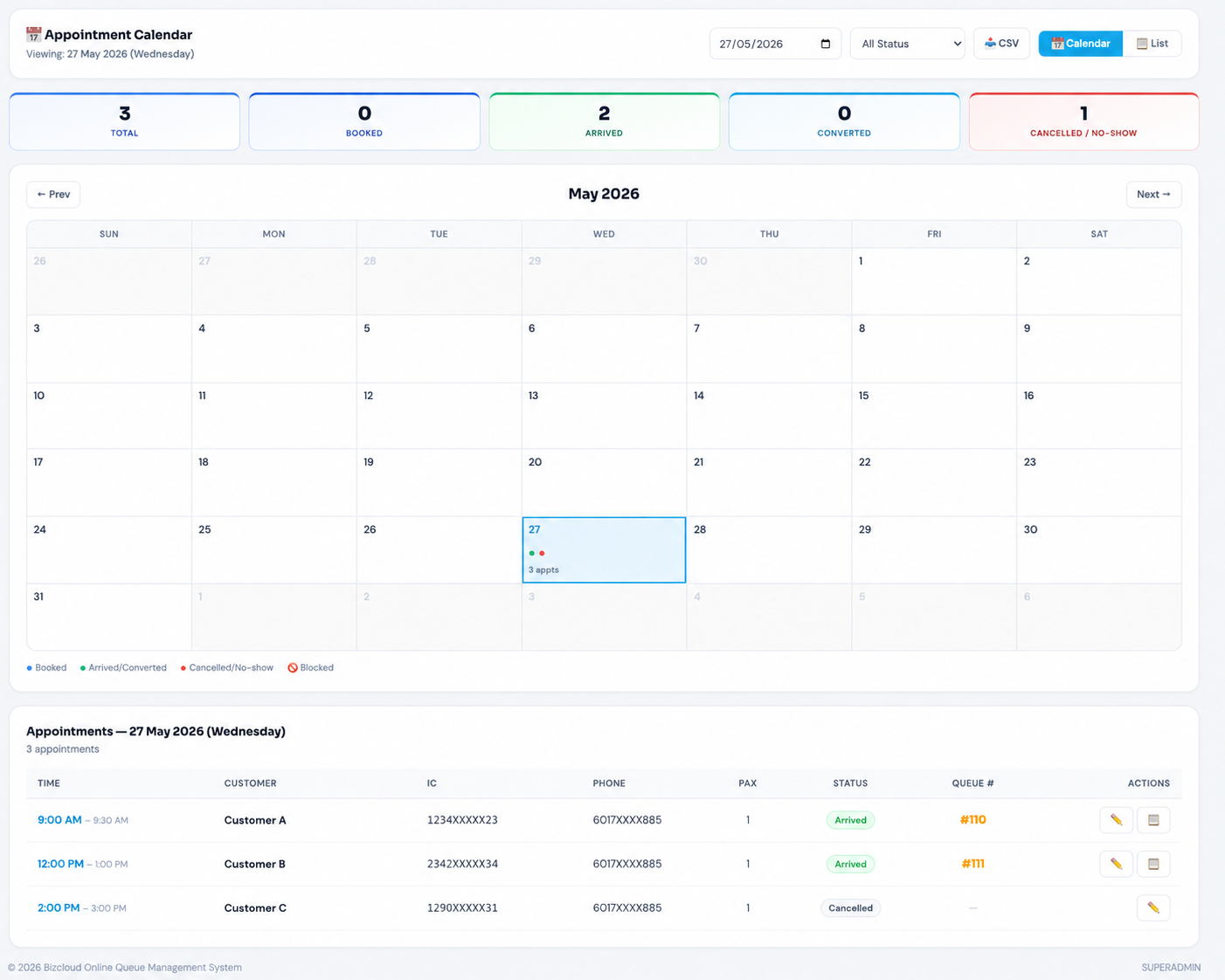
QMS Appointment Calendar View

📅 Appointment Calendar

Monthly calendar overview for managers. Each day with appointments shows colour-coded dots — click any day to drill into the full appointment list below.

  • Monthly calendarFull month at a glance — green dots for arrived/converted, red for cancelled/no-show
  • Click any dayInstantly loads that day's full appointment list below the calendar
  • Status filterFilter by All / Booked / Arrived / Cancelled, or switch List/Calendar view
  • Summary tilesTotal / Booked / Arrived / Converted / Cancelled count always visible
  • Blocked dates🚫 Blocked days shown on calendar — admin sees availability at a glance
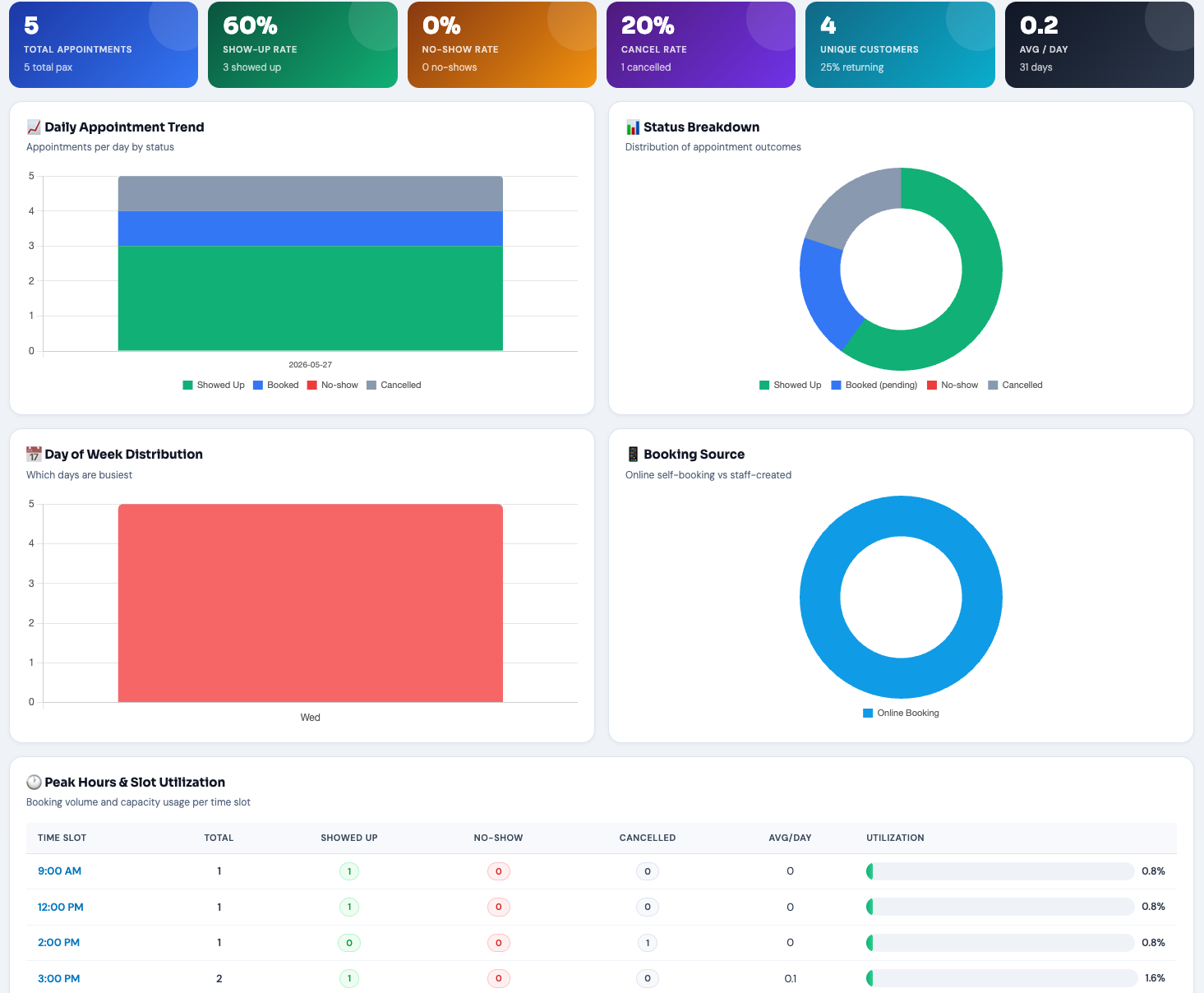
QMS Appointment KPI Dashboard

📊 Appointment KPI Dashboard

Management-level analytics dashboard. See how your appointment system performs across any date range — from daily trends to customer behavior patterns.

  • KPI tilesTotal appointments, show-up rate %, no-show rate %, cancel rate %, unique customers, avg per day — all at a glance
  • Daily trend chartStacked bar chart showing showed up, booked, no-show, and cancelled per day over time
  • Status donutVisual breakdown of appointment outcomes — instantly see what % showed up vs cancelled
  • Peak hours & slot utilizationEach time slot's booking volume, show-up count, and capacity with colour-coded progress bars
  • Returning customersCustomers who visited 2+ times with visit count, show/no-show history
  • Flagged customersFrequent no-shows auto-flagged by risk level: High (3+), Medium (2), Low
  • Date range filtersQuick buttons for 7 days, 30 days, 90 days, 1 year, plus custom date range picker
Features

Everything Included — No Extra Charge

The appointment module is built into your existing Cloud QMS or WhatsApp QMS portal. No separate system, no extra login, no additional fees.

⬡ All features included in both Cloud QMS & WhatsApp QMS plans
⬡ Both Plans

Online Booking Page

Shareable link for customers to book appointments from any device. Mobile-friendly with date picker and slot selection.

⬡ Both Plans

Flexible Time Slots

Admin defines time ranges with max capacity per slot. Unlimited slot rows. Enable or disable individual slots anytime.

⬡ Both Plans

Real-Time Availability

Booking page shows remaining slots live (e.g. "3 of 4 left"). Fully booked slots are automatically greyed out.

⬡ Both Plans

Staff Check-In Panel

Dedicated panel on Queue Control shows today's appointments. Search by IC or name, one-click check-in creates queue ticket.

⬡ Both Plans

Appointment Badge

Checked-in appointment tickets display a purple "📅 Appt" badge so staff can distinguish them from walk-ins at a glance.

⬡ Both Plans

Blocked Dates

Block public holidays or closure days. Customers see "not available" for blocked dates. Add reason labels for reference.

⬡ Both Plans

Copy Queue Link

Staff can copy any customer's live queue status URL from queue control and share via WhatsApp, SMS, or email. Works for both walk-in and appointment customers — lets them track their position in real-time.

⬡ Both Plans

Duplicate Prevention

Same IC number cannot book twice for the same date. Concurrent booking attempts handled with database-level locking.

⬡ Both Plans

Per-Company Toggle

Enable or disable the appointment feature per company from admin dashboard. Companies without it see no changes at all.

⬡ Both Plans

Customer Self-Cancel

Customers can cancel their own appointment online — no phone call needed. Cancellation policy is configurable (e.g. at least 24 hours before). After the cutoff, customers are directed to contact you directly.

⬡ Both Plans

QR Code for Booking

Admin can generate and print a QR code for the appointment booking link. Place at your counter, entrance, or waiting area. Customers scan with their phone camera to book instantly.

⬡ Both Plans

KPI Analytics Dashboard

Management dashboard with charts showing daily trends, peak hours, slot utilization, show-up rates, no-show rates, returning customers, and flagged customers. Filter by 7, 30, 90 days or custom range.

⬡ Both Plans

E-Appointment Ticket

After booking, customers get a digital e-ticket with all appointment details, company location, and cancellation option. They can print it, screenshot it, or revisit the link anytime before their appointment.

⬡ Both Plans

CSV Data Export

Export appointment data as CSV for any date. Includes customer name, IC, phone, time slot, status, and queue number. Perfect for record-keeping, compliance, and external reporting.

⬡ Both Plans

Monthly Calendar View

Full monthly calendar with colour-coded dots showing booking activity per day. Blue for booked, green for arrived, red for cancelled or no-show. Click any day to drill into the full list.

⬡ Both Plans

Configurable Cancel Policy

Set how many hours before the appointment customers must cancel. Default is 24 hours. Set to 0 to allow cancellation anytime. The e-ticket and cancel page automatically enforce your policy.

Analytics

Know Your Numbers — KPI Dashboard

Track appointment performance, identify peak hours, spot no-show patterns, and understand your returning customers. All from one dashboard with flexible date filters.

QMS Appointment KPI Dashboard — show-up rate, peak hours, slot utilization, flagged customers
  • Show-up rate trackingSee what percentage of booked customers actually show up. Benchmark and improve over time.
  • Peak hour analysisIdentify your busiest time slots. Optimize staffing and slot capacity based on real data.
  • Slot utilization barsVisual progress bars per slot. Green (under 50%), amber (50–80%), red (over 80%).
  • No-show pattern detectionSystem flags customers with repeated no-shows: High (3+), Medium (2), Low risk levels.
  • Returning customer insightsSee how many customers book again. Track their visit frequency and show-up reliability.
  • Day-of-week trendsBar chart shows which days are busiest — helps plan staffing and availability.
  • Flexible date rangesQuick filter: 7 days, 30 days, 90 days, 1 year — or set any custom date range.
  • Booking source breakdownSee how many bookings come from online self-booking vs staff-created. Understand adoption.
Configuration

Example: Clinic Slot Setup

Admin dashboard allows flexible time slot configuration. Here's a typical clinic setup — no coding required.

// Example: Clinic with 3 time slots, max 4 patients per slot

Slot 1 → 11:00 AM – 12:00 PM   Max: 4 patients
Slot 2 → 12:00 PM – 1:00 PM    Max: 4 patients
Slot 3 → 2:00 PM – 3:00 PM    Max: 4 patients

// Total daily capacity: 12 appointment slots
// Walk-in customers are unlimited (existing queue system)

// Blocked dates example:
Blocked → 2026-06-01   Reason: "Hari Raya Aidilfitri"
Blocked → 2026-08-31   Reason: "Merdeka Day"
Flexible configuration: Admin can add unlimited time slots with different capacities. Slots can be individually enabled or disabled. All managed from the admin dashboard — no coding, no server access needed.
Use Cases

Who Benefits From Appointment Booking?

Any business that serves customers at physical locations and wants to reduce walk-in congestion.

🏥

Clinics & Healthcare

Patients book consultation slots online. Reduces waiting room congestion. Walk-ins still served normally.

🏦

Banks & Finance

Customers pre-book for loan applications, account opening. Priority handling on arrival day.

🏛️

Government Counters

Citizens book for document collection, permit renewals. Reduces walk-in overflow.

💼

Service Centres

Telco, insurance, utilities — customers book appointments, staff prepared in advance.

🦷

Dental Clinics

Time-sensitive procedures need precise scheduling. Walk-ins fill remaining capacity.

🎓

Universities

Student services, registration counters, academic advising — book time slots for admin matters.

🏪

Retail & Telco

Premium customers book product consultations. Staff can prepare in advance.

🏢

Corporate HR

Employee onboarding, document verification, exit interviews — appointment slots keep things organised.

FAQ

Frequently Asked Questions

Everything you need to know about the appointment booking feature.

Is appointment booking included in my current plan?
Yes — the appointment module is included in both Cloud QMS and WhatsApp QMS plans at no extra charge. Just enable it from your admin Settings page — it takes one click.
Can I use walk-in and appointment queues at the same time?
Absolutely. Both walk-in and appointment customers end up in the same Waiting Queue. Staff uses the same Next/Skip/Recall buttons for both types. The only difference is a purple visual badge on appointment tickets.
Do appointment customers get priority over walk-ins?
This is configurable. By default, appointment customers join the queue when staff checks them in — same as a walk-in at that moment. You can configure priority handling based on your business needs.
What happens if a customer arrives late?
If the customer arrives within 30 minutes, staff can still check them in — the system flags it as "late arrival" and the ticket enters the normal queue (no priority). Beyond that, staff can choose to check in or mark as no-show.
Can I limit how many appointments per day?
Yes — you control this by configuring time slots with maximum capacity. For example, 3 time slots × 4 max bookings = 12 appointments per day. Walk-in customers remain unlimited.
Does this work with the LAN/on-premise queue system?
No — the appointment booking feature is available for Cloud QMS and WhatsApp QMS only. It requires internet for online booking. If you need an offline solution, see our Local Web QMS.
Do I need to install anything new?
No installation needed. The feature is activated from your existing admin portal. The booking page and check-in panel are all cloud-based and work in any browser.
Can customers book the same date twice?
No — the system prevents duplicate bookings. The same IC number cannot book twice for the same date. Concurrent booking attempts are handled with database-level locking to prevent double-booking.
Can customers cancel their own appointment?
Yes — customers can cancel their appointment online in two ways. First, the e-appointment ticket page has a "Cancel Appointment" button. Second, they can visit the cancellation page, enter their IC number and appointment date, and cancel from there. Cancellation is subject to your configured policy — for example, if you set "24 hours", customers can only cancel at least 24 hours before the appointment time. After the cutoff, they're advised to contact your business directly.
Can I set a cancellation deadline?
Yes — in Appointment Settings, you can set the "Cancel Before Hours" value. Default is 24 hours, meaning customers must cancel at least 24 hours before their appointment. Set it to 0 to allow cancellation anytime. The e-ticket and cancel page automatically enforce your policy and show a clear message when cancellation is no longer allowed.
Is there a KPI or analytics dashboard?
Yes — the Appointment KPI Dashboard gives management a full view of appointment performance. It includes KPI tiles (total, show-up rate, no-show rate, cancel rate), daily trend charts, status breakdown donut, peak hour analysis with slot utilization bars, day-of-week distribution, returning customer tracking, and a flagged customer list for frequent no-shows. Filter by 7 days, 30 days, 90 days, 1 year, or any custom date range.
Can I generate a QR code for the booking link?
Yes — in Appointment Settings, click "Show QR Code" next to the booking URL. The system generates a QR code instantly. You can print it (opens a print-friendly page with your company name and "Scan to book" label) or download it as a PNG file to use in flyers, posters, or signage.
Can I export appointment data?
Yes — on the Appointment Calendar page, click the CSV button to download all appointments for the selected date as a CSV file. The export includes date, time, customer name, IC, phone, pax, status, linked queue number, remark, and creation details.
What is the e-appointment ticket?
After a customer successfully books an appointment, they are redirected to their personal e-appointment ticket page. This page shows all booking details — name, IC, date, time slot, pax, company address, and contact number. The customer can print the ticket, cancel the appointment (if within the allowed cancellation window), or book another appointment. The ticket link uses a unique token so only the customer can access it.
Can I see which customers are frequent no-shows?
Yes — the KPI Dashboard includes a "Flagged Customers" section that automatically identifies customers with 2 or more no-shows or repeated cancellations. Each customer is assigned a risk level: High (3+ no-shows), Medium (2 no-shows), or Low. This helps your team make informed decisions about managing repeat offenders.
Can I track returning customers?
Yes — the KPI Dashboard has a "Returning Customers" section that shows customers who have booked 2 or more times within your selected date range. It displays their visit count, how many times they showed up, how many no-shows, and their first and last visit dates. You can also see the overall returning customer rate as a percentage.
What data does the KPI dashboard show?
The dashboard includes six KPI tiles (total appointments, show-up rate, no-show rate, cancel rate, unique customers, average per day), interactive charts (daily trend, status breakdown, day-of-week distribution), a peak hours and slot utilization table, a returning customers table, and a flagged customers list. All data can be filtered by 7-day, 30-day, 90-day, 1-year, or custom date range.

Ready to Add Appointment Booking?

Enable it in your admin portal today — or contact us for a live demo. Available for Cloud QMS and WhatsApp QMS at no extra charge.