Two devices can work the entrance
A BMO TF set to online event scanner mode, or a QTP configured as an event attendance device. Both read the guest's QR, record the attendance online, and can release a door. Which you use depends on what the entrance needs to do.
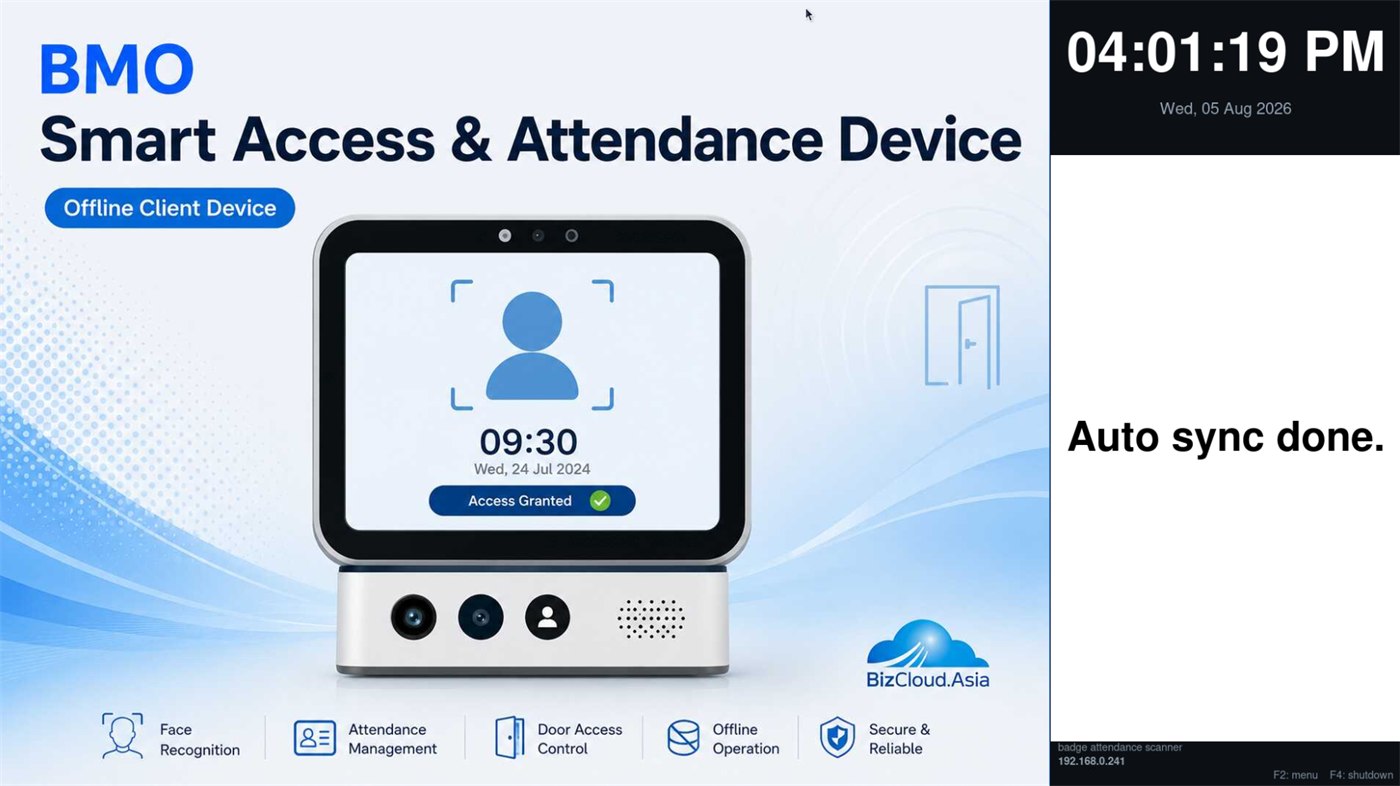
BMO TF or QTP
Both scan the same QR and post to the same event. The difference is the hardware around it.
The dedicated entry scanner
A fixed unit for the entrance, with a proper settings menu behind it. This is the one to use when the entrance has to control a turnstile or door, or when you want the extra checks the TF can perform.
- Set to online event scanner mode
- Drives a door relay when a scan succeeds
- Liveness check — a photo of a face won't pass
- Optional thermal screening with a warning threshold
- Switches to staff badge mode when the event is over
The one you may already own
If you already run QTP printers for your queue, one can be set as an event attendance device instead of buying more hardware. Scan with it to assign the role and it starts taking guests.
- Scan to set it as an event attendance device
- Reads the same guest QR as the TF
- Attendance recorded online the same way
- Reuses hardware you already have on site
- Goes back to ticket printing afterwards
Four steps, then it's working the door
Company code
Key your company code into the device so it knows which account it belongs to.
First sync
Run the first sync to pull your details down. Done once per device.
Choose the mode
Set the system mode to online event scanner.
Scan the setup QR
Press F2 for the menu, go to Event, and scan the device setup QR. Everything arrives at once.
One device, several jobs
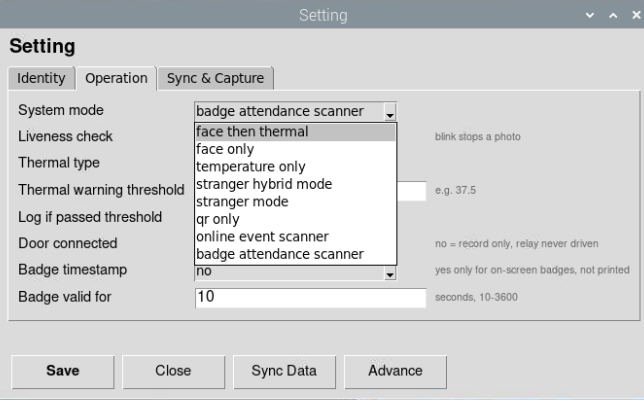
The system mode decides what the TF is for. Set it to online event scanner for the event, and switch it to badge attendance afterwards to check staff in and out — the same unit, doing a different job.
- Online event scanner for guest entry
- Badge attendance scanner for staff
- Changed in the settings, not by swapping hardware
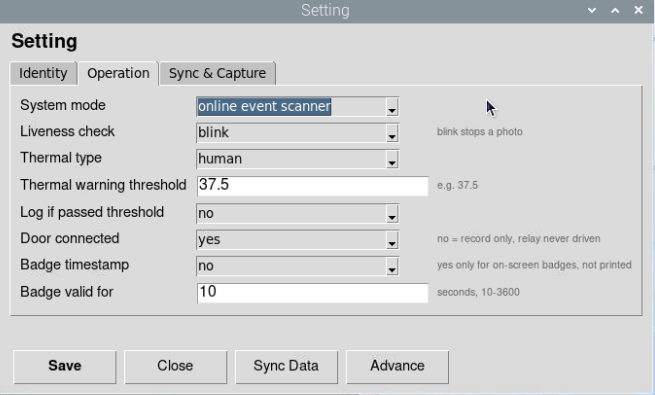
What the device does on a scan
The operation settings control what happens when a QR is read: whether the door relay is driven at all, how long a badge stays valid, and whether a liveness check or thermal reading is applied before anyone is let through.
- Door connected — drive the relay, or record only
- Liveness check — a blink stops a photo getting in
- Thermal — optional temperature threshold
- Badge valid for — how long an on-screen badge lasts
Which one for which entrance
| BMO TF | QTP | |
|---|---|---|
| Reads the guest QR | Yes | Yes |
| Records attendance online | Yes, live | Yes, live |
| Opens a tri-bar or door | Yes, via the door relay | Ask us for your setup |
| Liveness & thermal checks | Available | — |
| Set up by | Company code, sync, then scan the setup QR | Scan to set it as an event device |
| Best when | The entrance is controlled and permanent | You already own QTPs and want to reuse one |
How many entrances are you covering?
Tell us the number of doors and whether any of them has a turnstile — we'll recommend the devices and set them up.