One event, two QR codes
Create the event in the BMO web app and it hands you both codes you need: one that configures a scanner device, one that guests register through. Nothing else has to be typed into a device on the day.
One faces your device, one faces your guests
They look alike and do completely different jobs, so it's worth being clear which is which.
Device setup QR
This one never leaves your hands. Scanning it with a BMO TF or QTP tells the device which event it is working, and brings every setting across in one action.
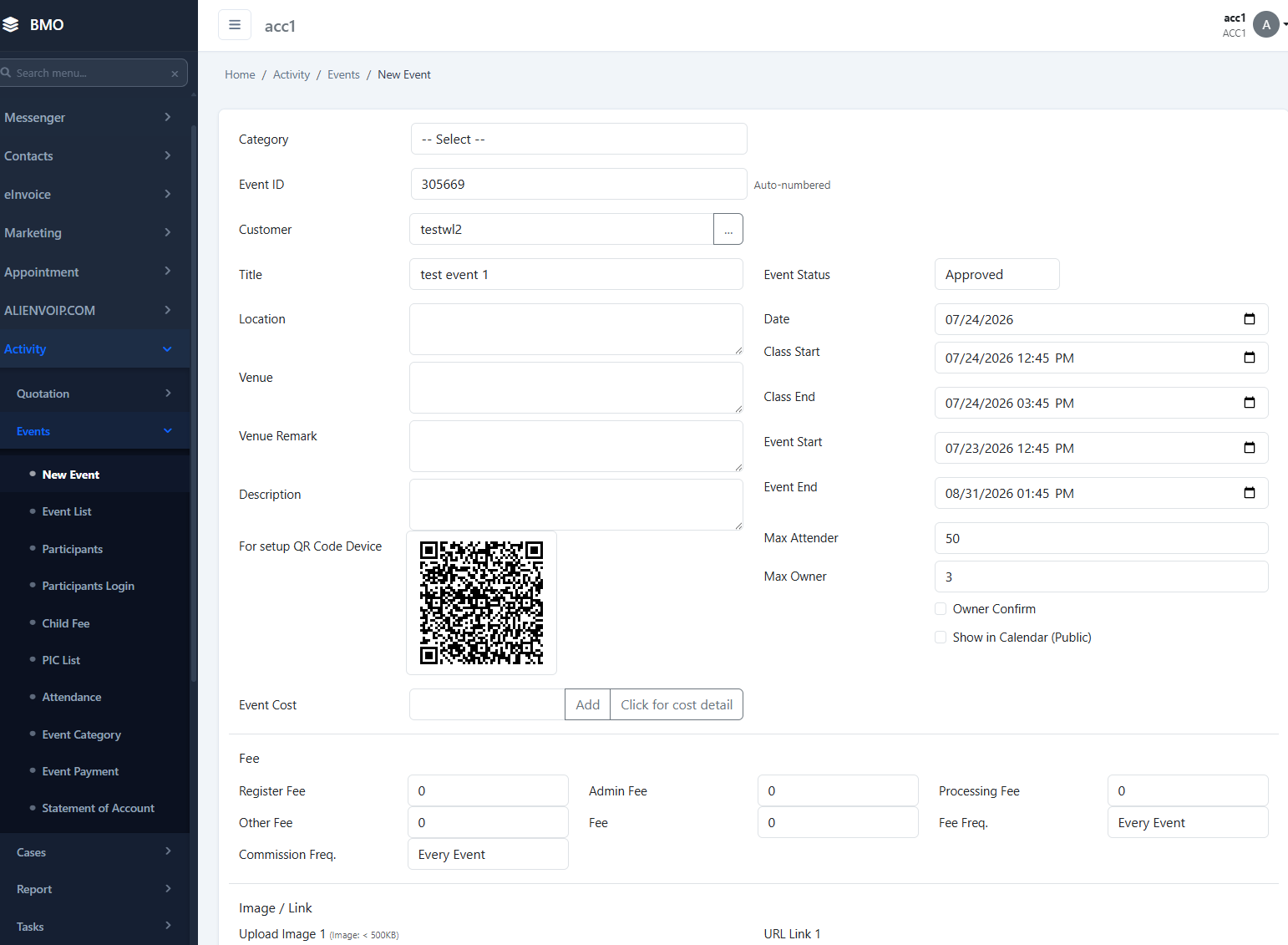
- Pairs a scanner to this specific event
- Carries the settings — nothing keyed in
- Works for a BMO TF or a QTP
- Keep it internal — it is not for guests
Registration QR
This is the one you publish. Put it on entrance signage, in an invitation, on a poster or on social media — anyone who scans it lands on your registration form.
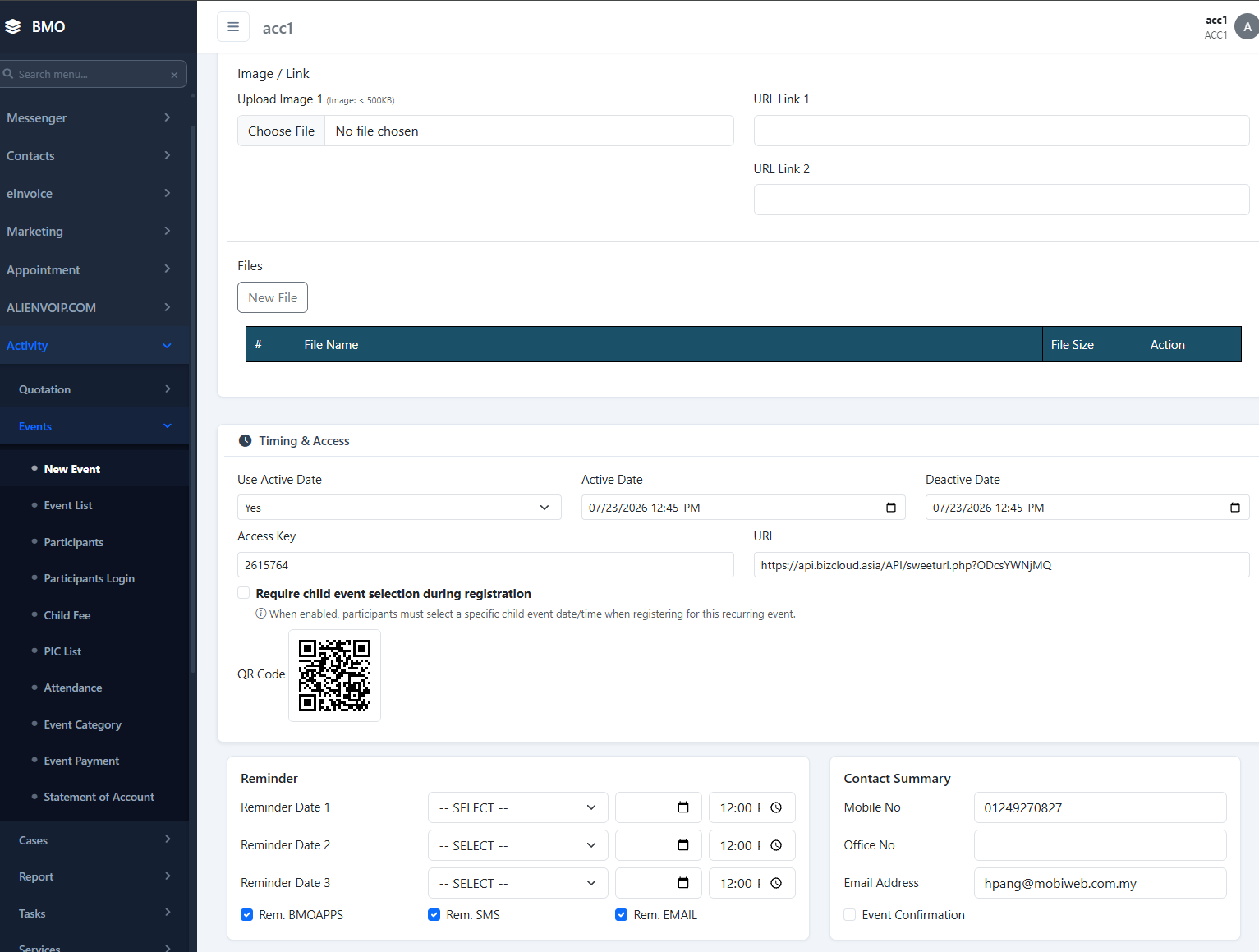
- Opens the registration form on any phone
- Display it anywhere — print or screen
- No app for the guest to install
- Same code works for the whole event
The device setup QR configures equipment; the registration QR signs people up. Publishing the wrong one means guests scan a code that does nothing for them — label both clearly when you print.
Four steps in the web app
Log in
Open the BMO web app and sign in to your company account.
Create the event
Name, dates and details. Add child sessions if the event has several parts.
Collect the QR codes
Both codes are generated with the event and stay available in the portal.
Pair and publish
Scan the setup QR with your device, and publish the registration QR to guests.
We'll set your first event up with you
Send us the event details and we'll configure it, generate the codes, and walk your team through pairing the device.