Open a browser. That's the whole install.
The Web Queue Manager is hosted on a server in your building. Staff go to a URL, log in, and run their counter from any machine on the network — PC, laptop or tablet, Chrome or Edge. Nothing to install per counter, and nothing leaves your LAN.
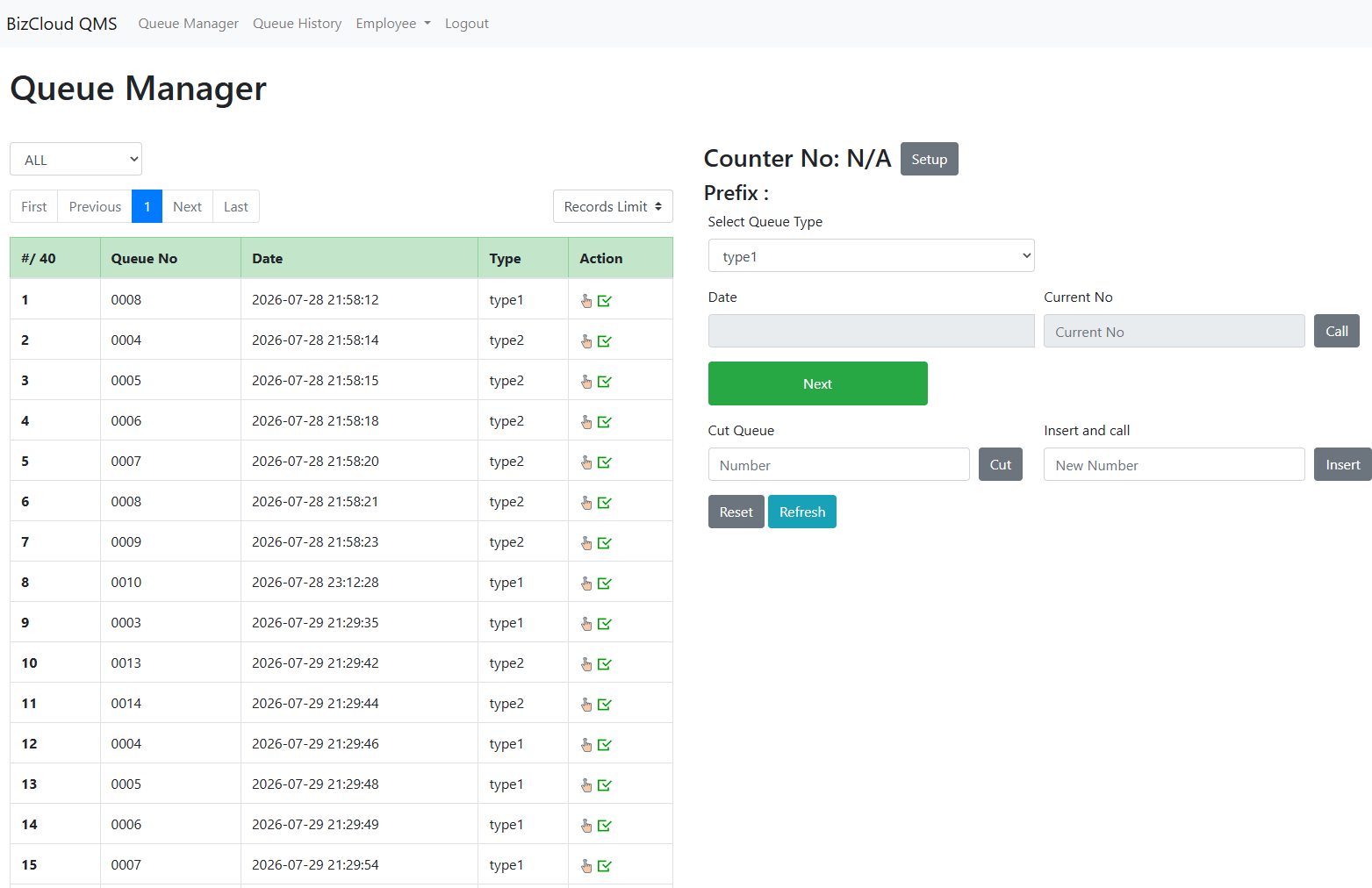
The same queue actions, in a browser tab
Call, next, cut, insert — the counter functions your staff already know, with no application to roll out to every desk.
The big green button. Takes the next waiting number for this counter.
Calls the number in Current No — used to call or re-call a specific customer.
Key a number and remove it from the queue when the customer has left.
Create a number by hand and call it straight away.
Clears the counter back to a clean state.
Pulls the latest waiting list without reloading the page.
Sets which counter number this browser session is working as.
Work one ticket type, or leave it on ALL to take everything in order.
Every waiting ticket, paged and filtered
The list shows the queue number, when it was issued and its ticket type, with an action against each row so staff can call or complete a specific customer without hunting. Filter to one ticket type or leave it on ALL, and set how many rows to show at a time.
- Queue number, issue time and ticket type per row
- Call or complete straight from the row
- Filter by ticket type, or show everything
- Records limit and paging for long queues
- Total waiting count shown in the header
Queue history and staff accounts, built in
Because it is a web app, the other things you need are in the same place: what happened earlier today or last week under Queue History, and who is allowed to work a counter under Employee. Each counter session signs in as itself.
- Queue History for past tickets and activity
- Employee accounts, so counters log in as themselves
- Counter number set per session in Setup
- Works on Chrome or Edge, on PC, laptop or tablet
Where this beats installing software
No rollout per counter
Adding a counter means opening a browser, not scheduling an install. Useful when counters move around or open seasonally.
Any machine on the network
Whatever is already on that desk — PC, laptop or tablet — can run a counter without new hardware.
Stays on your LAN
The server sits in your building. No internet dependency, and the queue data never leaves the network.
One server, and the counters follow
| Item | Detail |
|---|---|
| Server | One machine on your network hosts the web queue manager |
| Counters | Staff browse to the URL and log in — nothing installed per counter |
| Browsers | Chrome or Edge, on PC, laptop or tablet |
| Counter quantity | Set in your company profile |
| Web clients | The number of simultaneous web clients depends on your plan |
| Printers & displays | A Windows Queue Manager on that server acts as the server QTP printers and QDisplay screens connect to |
| Database | MySQL, which can live on the same machine |
| Internet | Not required — the whole system runs on your LAN |
If you want QTP ticket printers and QDisplay screens as well, that server also needs a Windows Queue Manager installed to act as their server. It can sit on the same machine as the web server and the database — but it does need to be there. See how it all connects →
Counters in a browser, server in your building
Tell us how many counters you need running at once and we'll size the server, confirm the plan, and set it up on site.