WhatsApp Queue Live Demo
Don't take our word for it — join a real queue yourself. Scan the QR code with your phone, fill in the form, and watch your number move up the line exactly as your customers would. Five steps, under two minutes, nothing to install.

Five steps to experience the queue
Follow each step exactly as a real customer would. It takes about two minutes.
Scan the QR code with your phone
Open your phone's camera and point it at the QR code above. A link appears — tap it and the live demo queue page opens straight in your browser. There is no app to download.
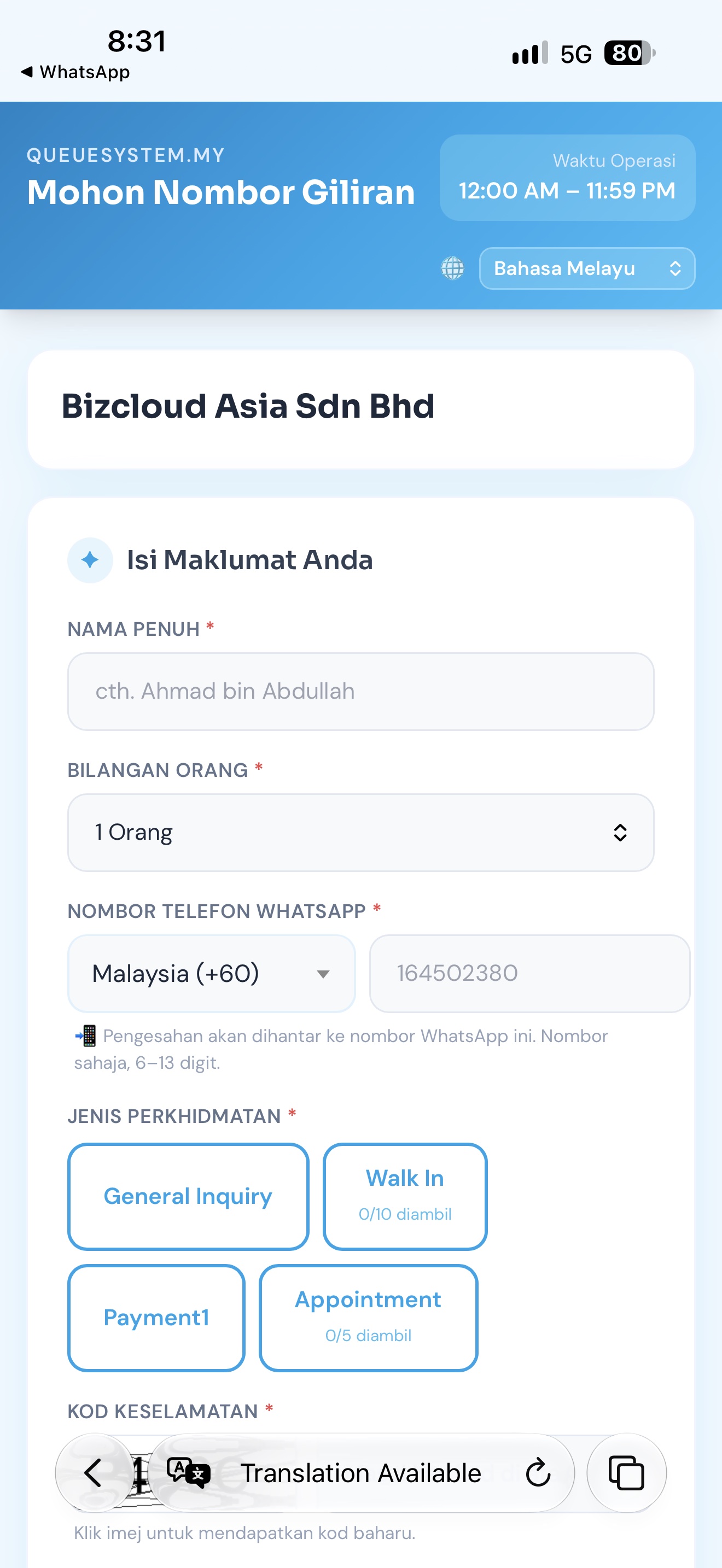
Fill in your details and submit
The queue request page opens. Choose your preferred language using the selector at the top. Enter your name and WhatsApp number, choose how many people are with you, pick a service type, solve the short security code, then tap Submit. Scroll down on your phone to reach the button.

Your queue number is confirmed
A confirmation page shows your queue number. Your place in the line is secured and you are free to sit down, or leave the room entirely.

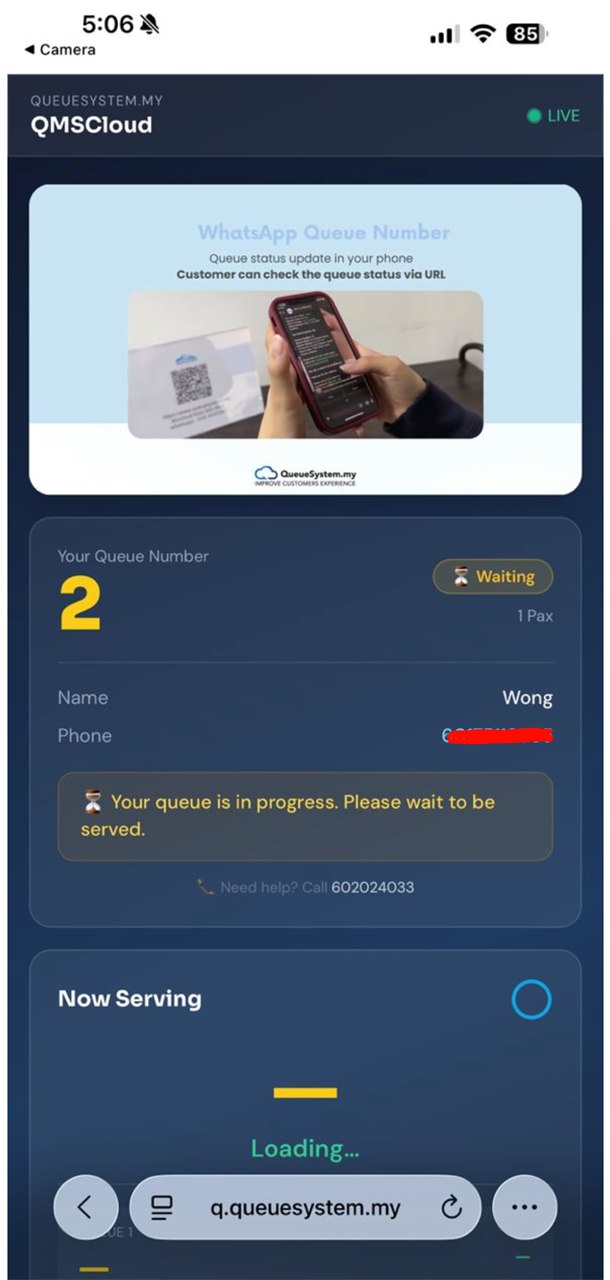
Track your position, live
Tap View My Queue on the confirmation page to see your position and which number is being served right now. It refreshes on its own — nobody has to stand at the counter watching a screen.
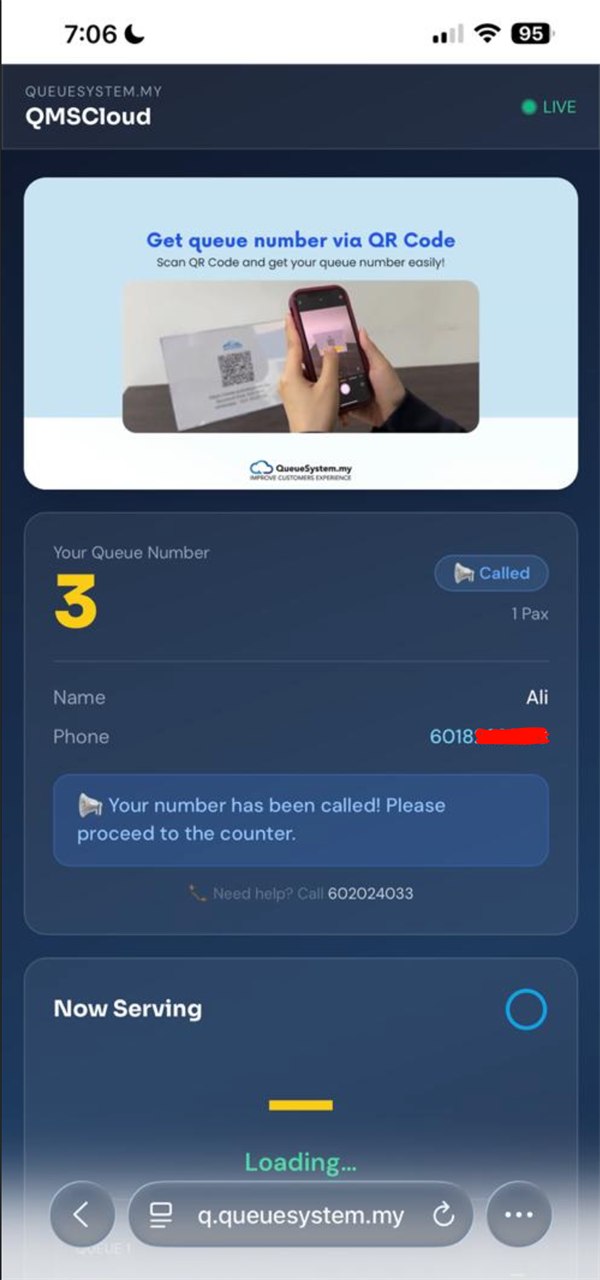
Your number is called
When counter staff press NEXT, your number is called. Your status on this page changes to Called, and in a real deployment the number also appears on the TV display with a voice alert. Time to walk up to the counter.
What your staff see
On the other side of this demo there is an admin screen listing everyone waiting, where staff press NEXT to call the following number. Ask us for a walkthrough of the counter side and we'll show you live.
Tried it? Here's what usually happens next
Talk it through
Tell us how many counters you run and how your customers arrive. We'll say which system fits — and if you don't need one, we'll say that too.
WhatsApp usSee the whole range
The virtual queue is one of four Qsystem products — there is also the on-premise counter suite, event door access, and staff attendance.
All four productsThat was the customer's side. Want to see yours?
We'll walk you through the counter screen, the TV display and the reports on a call, using your own service types — then quote it.