The same counter software — on a tablet
Where there is no room for a PC, or no desk at all, the BMO App turns an Android tablet into a full counter station. Call, recall, complete, skip, cut and transfer — the same queue functions as the Windows manager, in your hand.
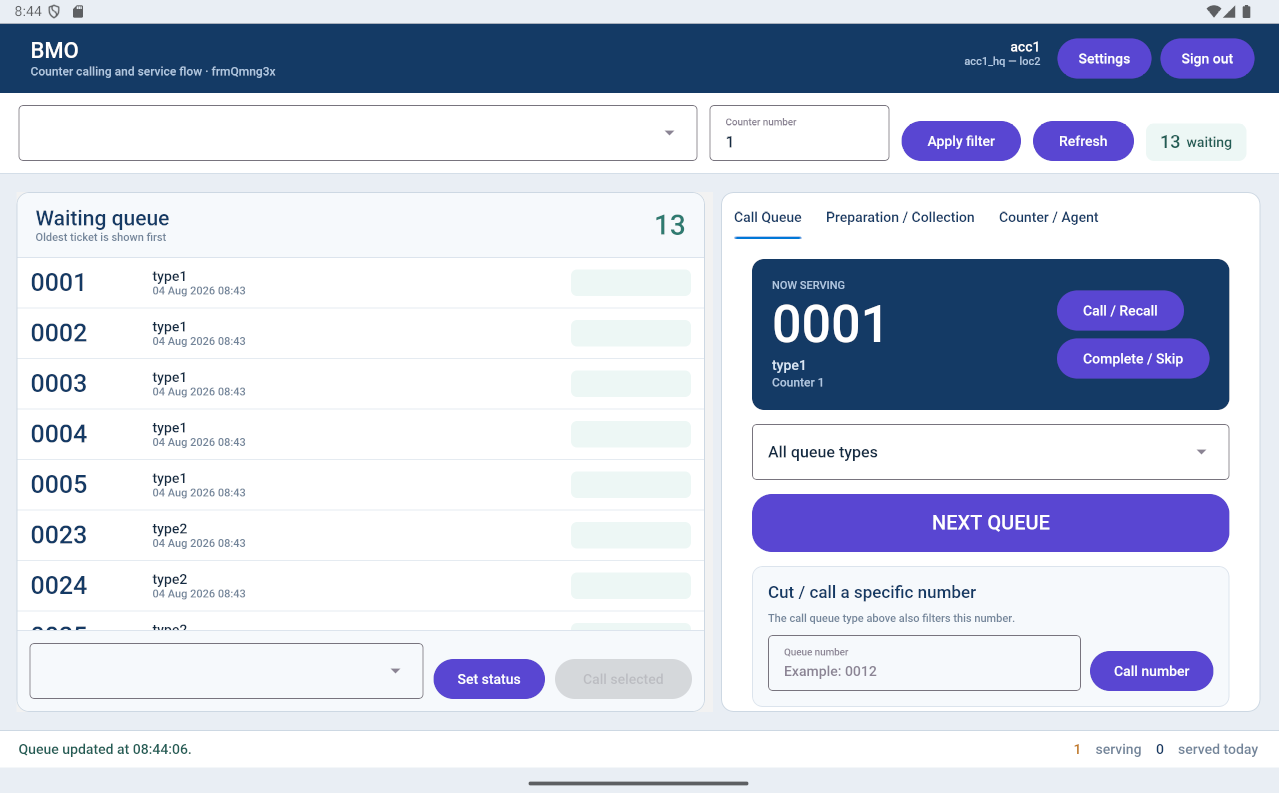
Two panels, and that's the whole job
Waiting queue
Everyone still waiting, oldest ticket first, each tagged with its ticket type and the time it was issued. The count sits at the top so staff can see the pressure at a glance.
- Oldest ticket shown first
- Ticket type and issue time beside every number
- Live waiting count in the header
- Tap a row and call that customer directly
- Set a status on a selected ticket
Now serving & calling
The number this counter is serving, in large type, with the actions beside it. One big NEXT QUEUE button does the routine work; everything else is for the exceptions.
- Now Serving with ticket type and counter
- Call / Recall for a customer who missed it
- Complete / Skip to close off the visit
- Filter the call queue by ticket type
- Cut or call a specific number by keying it in
Everything the Windows manager does
Same queue functions, different device. If your staff can run the Windows manager, they can run this.
| What you need to do | On the tablet | How it works |
|---|---|---|
| Call the current number | Call / Recall | Calls the number on the Now Serving panel, and recalls it if the customer missed it. |
| Next | NEXT QUEUE | One large button takes the next waiting number. |
| Select a specific waiting customer | Tap the list, Call selected | Pick any row in the waiting queue and call that person instead of the next one. |
| Set Served | Complete / Skip | Closes off the visit, or skips a customer who did not come forward. |
| Insert and Call / Cut | Cut / call a specific number | Key in a number and call it directly, filtered by the selected queue type. |
| Push to another counter | Status & queue controls | Move a customer onward keeping their original number. |
| Filter by station | Counter number + Apply filter | Set which counter this tablet is, and filter the list to it. |
| Refresh the list | Refresh | Pulls the latest queue, with the last update time shown at the bottom. |
Switch to the view that matches the moment
Call Queue
The everyday view — who you're serving, and the buttons to call the next customer.
Preparation / Collection
For counters where an order is prepared and then collected, so both stages are tracked separately.
Counter / Agent
Counter and agent assignment, for setups where who is serving matters as much as where.
And a live status line underneath
A tablet, the app, and somewhere for the data
Log in on the tablet with your company account and set its counter number. It joins the same queue as every other counter, whether those counters are tablets, PCs or browsers. An Android tablet manager can also be the one that acts as the server for your printers and displays.
- Android tablet with the BMO App
- Signed in to your company account and location
- Counter number set per tablet
- Can act as the server for QTP printers and QDisplay
A Windows-only system can keep the database on the Queue Manager itself. As soon as tablets are involved, a MySQL server is required — on its own machine or sharing one with a Windows Queue Manager. See server setup →
Tablet, PC or browser?
All three run the same queue. Pick per counter — you can mix them freely.
When the counter has no PC
- Small counters with no room for a desktop
- Staff who move around while serving
- Pop-ups and temporary counters
- Cheapest way to add another counter
When the counter is a workstation
- Staff already work at a PC all day
- You want reports on that machine
- The database can live on the same box
- No MySQL server needed for a Windows-only setup
Add a counter without adding a desk
Tell us how many counters you need and where they sit. We'll advise which should be tablets and which should be PCs, then set the whole thing up on site.