Any TV becomes a queue display
QDisplay connects to your Queue Manager and puts the called numbers on screen with the counter or room beside each one — and calls them out loud. Twelve layouts ship with it, so the screen fits your room instead of the other way round.
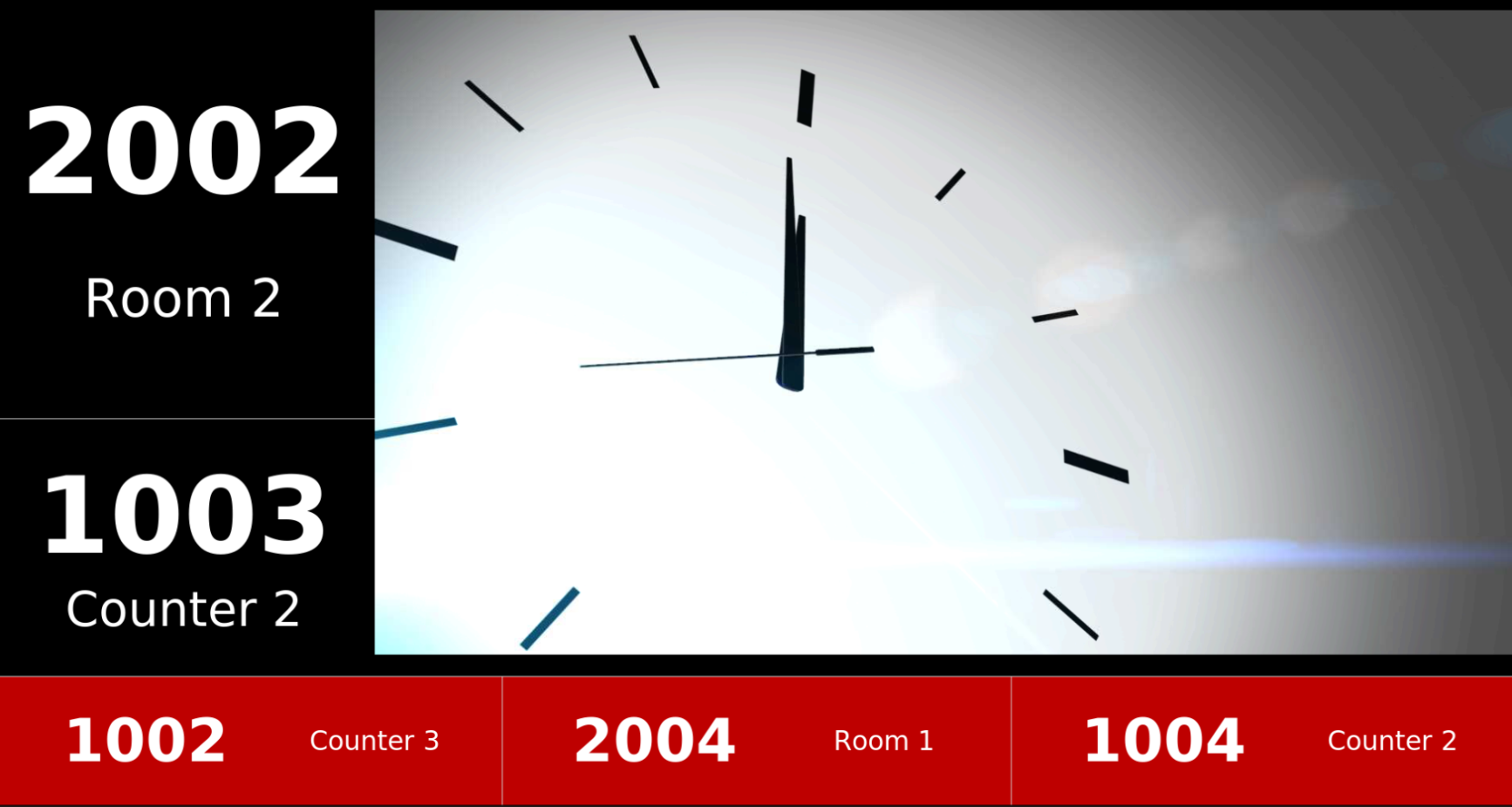
Seen from across the room, heard from anywhere in it
Number and counter
Every called number appears with the counter or room the customer should walk to — no guessing, no second queue at the wrong desk.
Calls out loud
A voice announcement goes with the number, so people looking at their phone still hear their turn.
Recently called
A strip of the last numbers called reassures anyone who looked up a moment too late.
Video and adverts
Several layouts carry a video or GIF panel, so waiting time becomes screen time for your own promotions.
Plugs into any TV
Connects to a display controller and any TV with an HDMI input. No specialist screen to buy.
Fed by the Queue Manager
QDisplay connects to the Queue Manager acting as server, so what staff call is what the screen shows.
Twelve layouts, picked from a preview
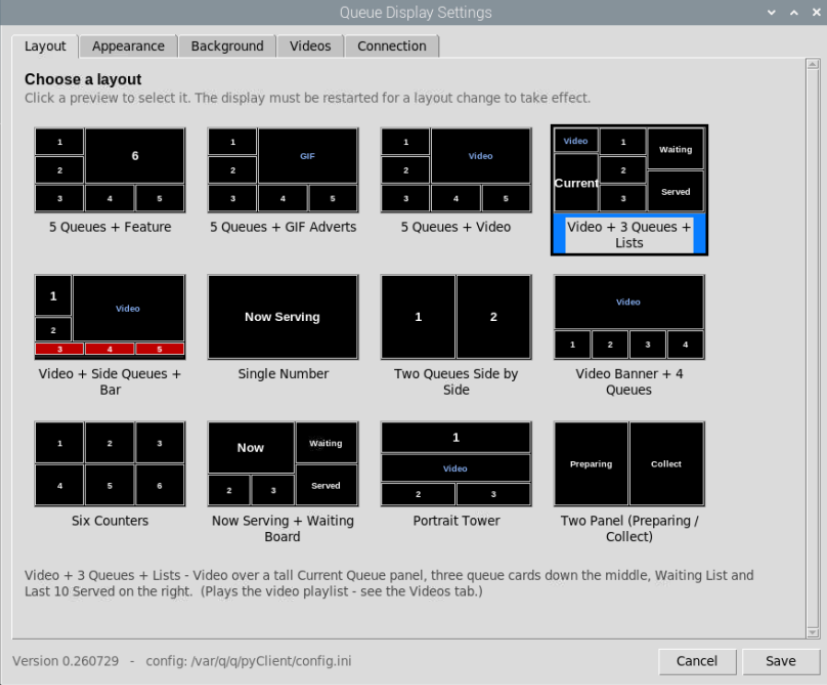
Open the display settings, click the layout that suits your room, save. Each one arranges the numbers, lists and media panels differently.
5 Queues + Feature
Five queue cards with a large feature panel beside them.
5 Queues + GIF Adverts
Five queue cards, with an animated GIF advert running alongside.
5 Queues + Video
Five queue cards with a video panel filling the rest of the screen.
Video + 3 Queues + Lists
Video over a tall Current Queue panel, three queue cards down the middle, Waiting List and Last 10 Served on the right.
Video + Side Queues + Bar
Video centre stage, queue cards down the side and a highlight bar along the bottom.
Single Number
One enormous Now Serving number. Unmissable from the back of the room.
Two Queues Side by Side
Two large numbers, split down the middle — good for two counters.
Video Banner + 4 Queues
A video banner across the top with four queue cards beneath it.
Six Counters
Six queue cards in a grid, for a wider counter hall.
Now Serving + Waiting Board
A large Now Serving panel with Waiting and Served boards beside it.
Portrait Tower
Built for a screen mounted portrait — number on top, video below.
Two Panel (Preparing / Collect)
Split into Preparing and Collect panels — made for order collection flows.
Pick a new layout and the display has to be restarted for it to take effect. Worth knowing before you switch layouts in the middle of a busy morning.
Click a preview to choose it
The Queue Display Settings window shows every layout as a thumbnail, so you can see how the numbers, lists and media panels are arranged before committing. Select one, read the description underneath, and save.
- Every layout previewed as a thumbnail
- Plain-language description of the selected layout
- Portrait option for vertically mounted screens
- Preparing / Collect split for order collection
Five tabs of settings
Everything about how the screen looks and where it gets its data.
Run as many displays as the building needs
A screen at the entrance, another in the waiting hall, a third upstairs — each one connects to the same Queue Manager and can run its own layout. A common trick is to keep one display purely for the sound, so the announcement carries into a room where the screen itself isn't visible.
- Multiple displays, all fed from one Queue Manager
- Each screen can use a different layout
- Keep one display for voice call-out only
- Add screens later without touching the counters
Tell us about your room
How big is the waiting area, how many counters, portrait or landscape screen? We'll recommend a layout, supply the display controller, and set it up on site.