How to run your queue system day to day
Getting the WhatsApp queue live, working the counters on an on-premise system, moving a customer between departments without a second ticket — and straight answers to the questions we get asked before every install.
Getting the WhatsApp queue live
Four steps from a blank account to customers joining your queue by scanning a code at the door. We do the first one with you — the rest you can drive yourself.
Set up the WhatsApp business number
A dedicated WhatsApp Business number is what sends the queue messages. Registration, verification and getting the message templates approved is a process with a few moving parts — our team handles the whole thing for you.
- Register the WhatsApp Business number
- Get the queue message templates approved
- Fill in the business profile customers will see
- Connect the number to your queue portal
Configure the portal
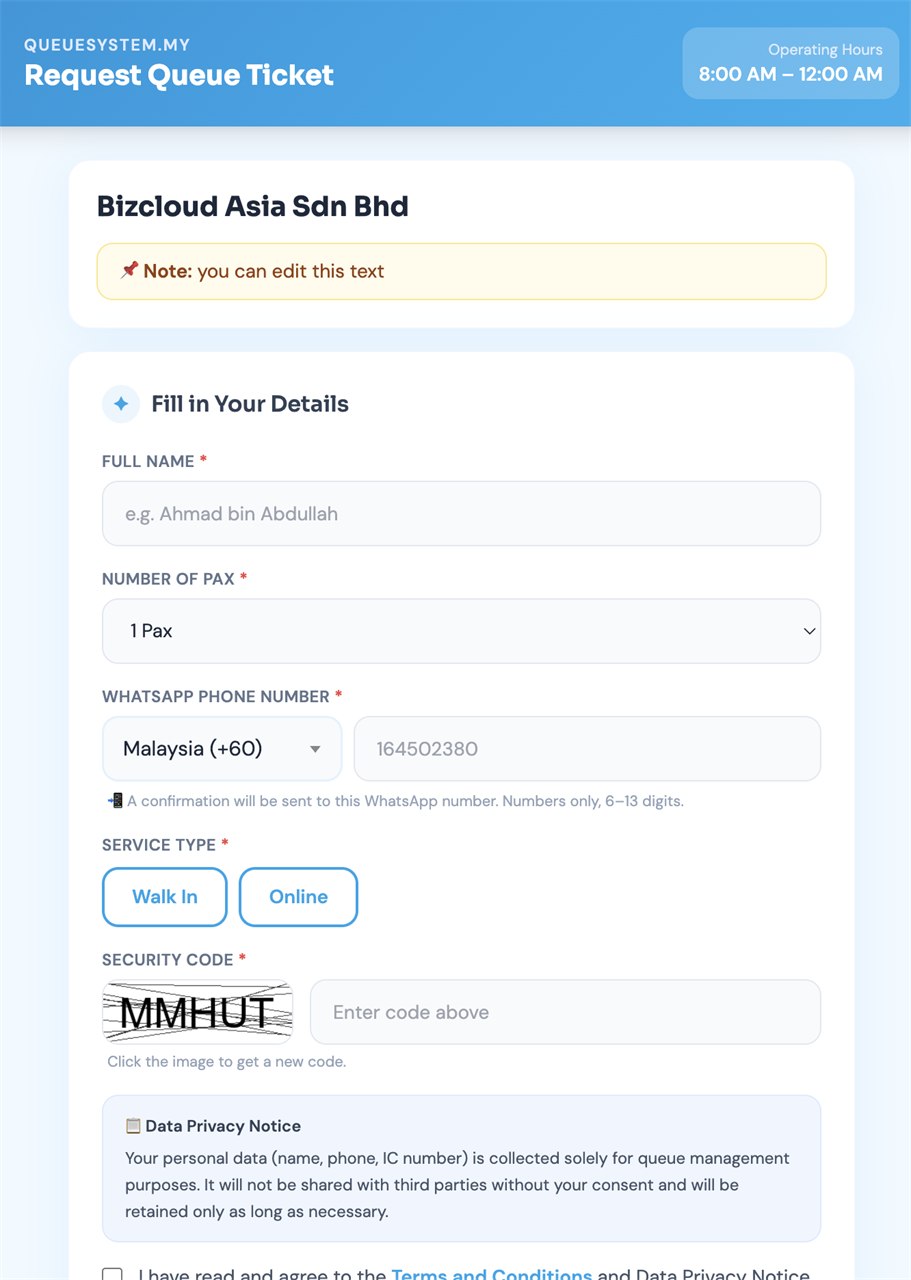
Log in to the web portal and set up how your queue behaves — the services customers can pick, the hours the queue accepts requests, how many people can be waiting at once, and who on your staff can call numbers.
- Company details and branch information
- Service types customers choose from
- Queue request hours and waiting limits
- Staff accounts, each with its own access level
Put your QR code where people arrive
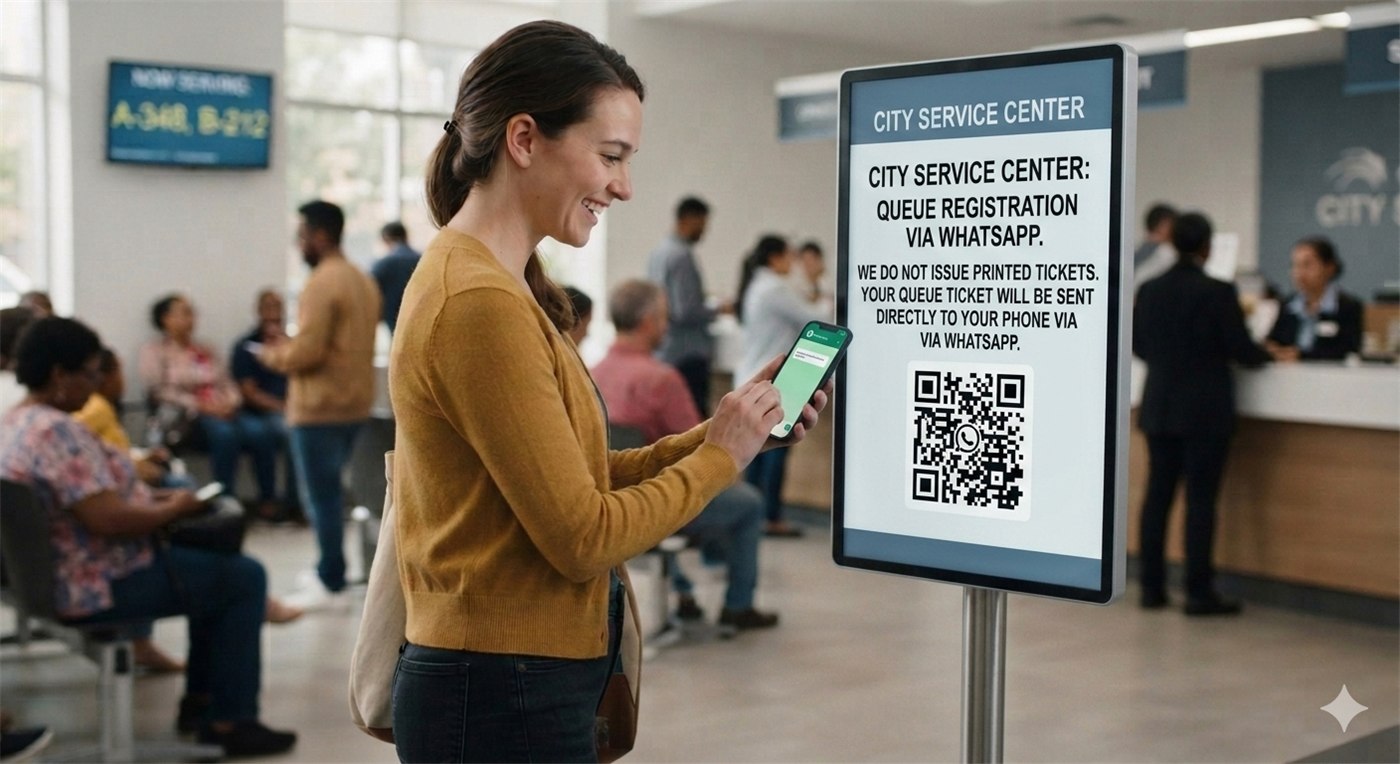
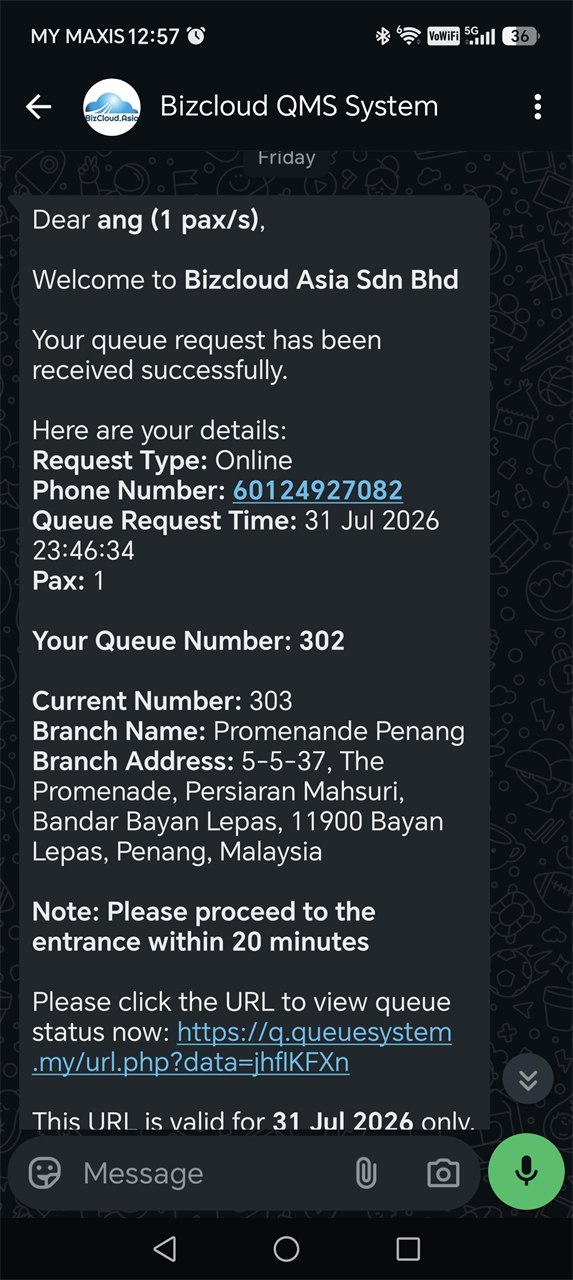
Download the QR from the portal and put it at the entrance, on the counter, or on a standee in the waiting area. A customer scans it, picks their service, and their queue number arrives on WhatsApp with a link they can refresh to watch the line move.
- A separate QR per branch or per service if you want one
- Print at A4 or A3, or show it on a tablet or TV
- Queue number sent to WhatsApp the moment they submit
- The link stays live and refreshes the current position
Call customers from the manager
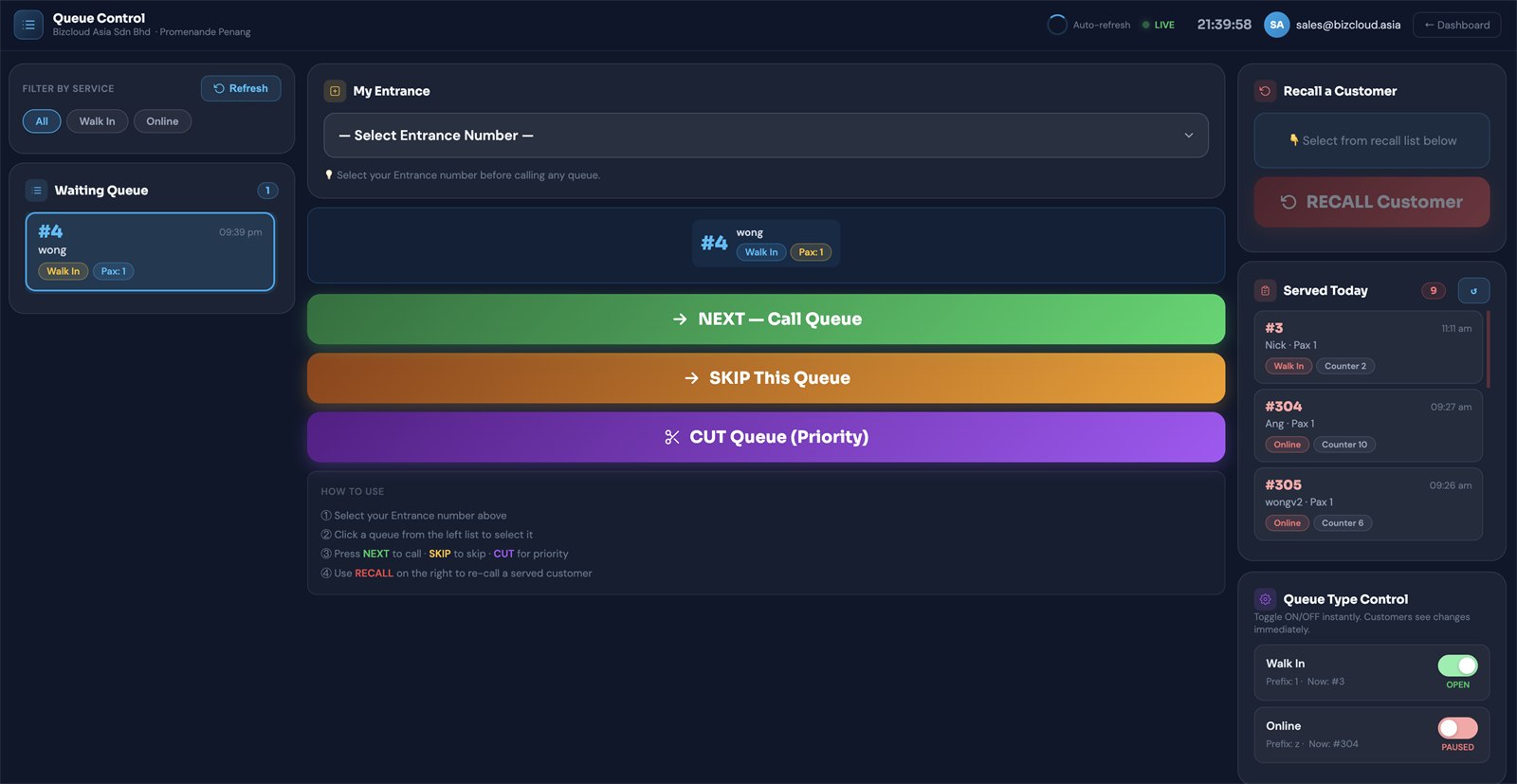
Staff work the queue from the manager screen. Calling the next customer sends them a WhatsApp message with the counter to go to — which is why nobody has to sit in your waiting room staring at a screen.
- Confirmation sent when the number is issued
- Calling message sent with the counter number
- Recall a customer who missed their turn
- Everything logged for the reports
Running the counter system
The daily rhythm of an on-premise system: the ticket station out front, the display on the wall, and a Queue Manager at every counter. Hardware configuration is covered in the setup guide.
The ticket station
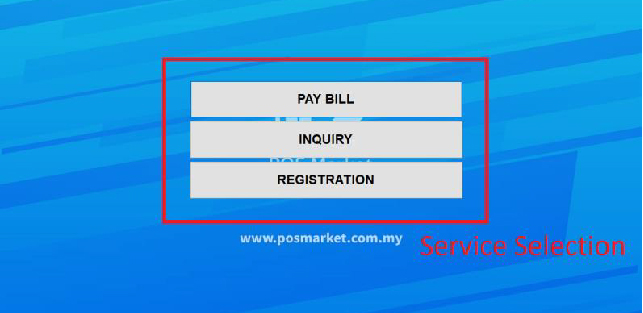
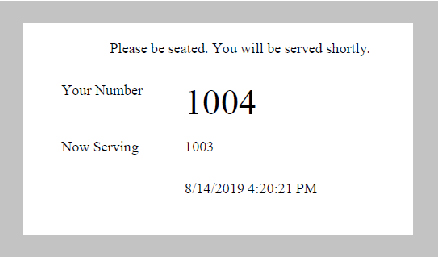
Each service is a button. The customer touches the one they need and the ticket prints with their number and the number currently being served — so they know how long the wait is before they sit down.
- One button per service, named as customers read it
- Each service keeps its own number series
- Numbering resets automatically each day
- Works as a stand-alone printer or wired into the full system
The display on the wall
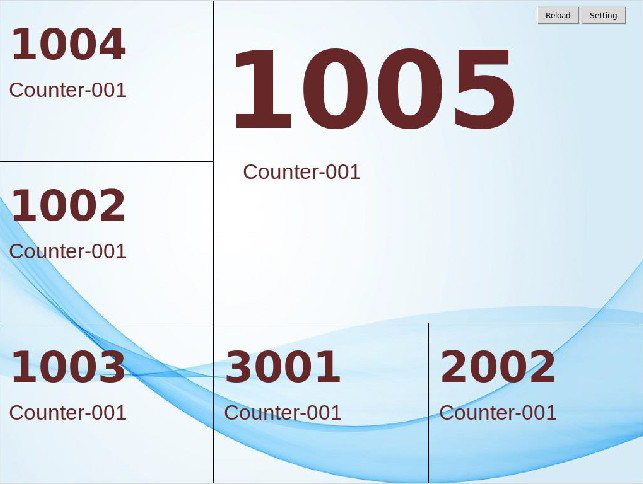
The display box drives any TV over HDMI and shows the number being called, the counter calling it, and whatever recent history the layout has room for. Announcements play through the TV's own speakers.
- Twelve layouts — single number, six counters, portrait, video panels
- Your own background image and colours
- Add as many screens as the room needs
- Leave the voice on one screen only
The Queue Manager at each counter
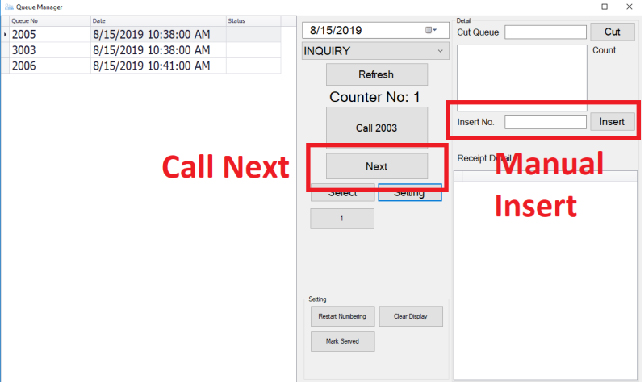
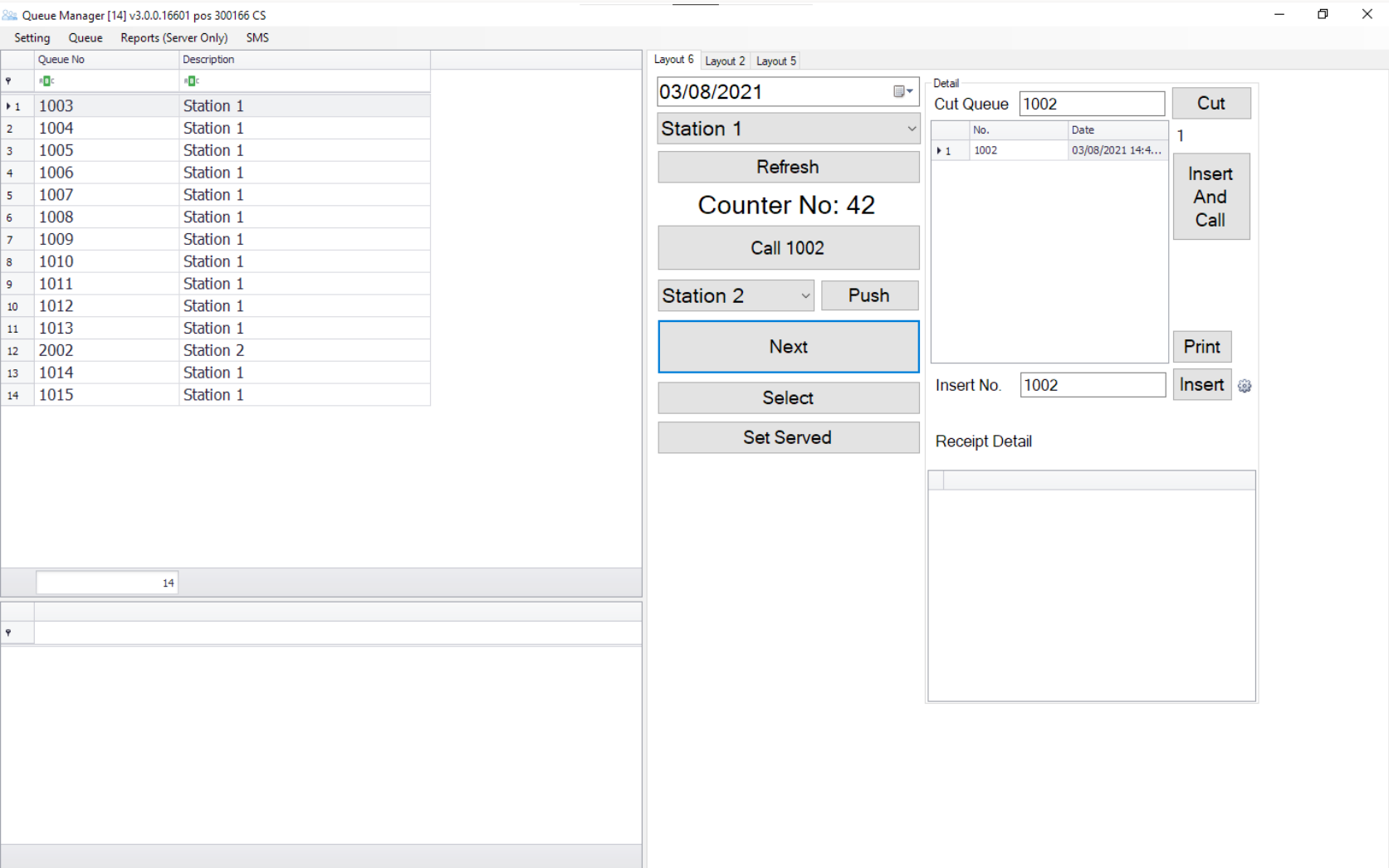
Staff spend the day on this one screen. Next calls the following customer. The Call button repeats the announcement for someone who didn't hear it. Insert adds a walk-in by hand, and Cut Queue brings someone forward when they need to be.
- Call, recall, skip and cut the queue
- Insert a number manually when needed
- Push a customer to another counter or department
- Every action logged for the daily reports
Moving a customer without a second ticket
Send a customer from one counter or department to another while they keep the number they were given at the door. No second ticket, no going back to the machine, no starting again at the bottom of another queue.
Consultation, then pharmacy
A patient takes ticket A-01 at the door and sees the doctor. They then need the pharmacy. Instead of sending them back to the ticket machine, the doctor's counter pushes A-01 straight into the pharmacy queue.
- One ticket covers the whole visit
- The doctor picks Push, then Pharmacy
- A-01 appears in the pharmacy queue immediately
- On the WhatsApp queue, the patient gets a message about it
Counter, then manager
A customer comes in to open an account. The counter processes the paperwork, then finds the application needs a manager's approval. One click puts that customer into the manager's queue with their original number intact.
- One number taken at the door
- Counter finishes its part of the job
- Push to the manager's queue in one click
- The manager's screen shows them waiting
Questions we get before every install
If yours isn't here, ask — the answer is usually one message away, and we'd rather settle it before the quotation than after.
Still have a question?
Send it over. You'll get an answer from someone who installs these systems, not a chatbot — and it costs you nothing to ask.
Ask our teamWant us to walk your team through it?
Staff training is part of every installation we do. If you inherited a system from someone else, we'll come and train your people on it anyway.