Qsystem On-Premise Queue Management Suite
The complete counter setup, running inside your building. A ticket printer or kiosk issues the number, the Queue Manager calls it, QDisplay shows it on the TV and QCaller handles simple calling — all on your own server, with no dependency on the internet.
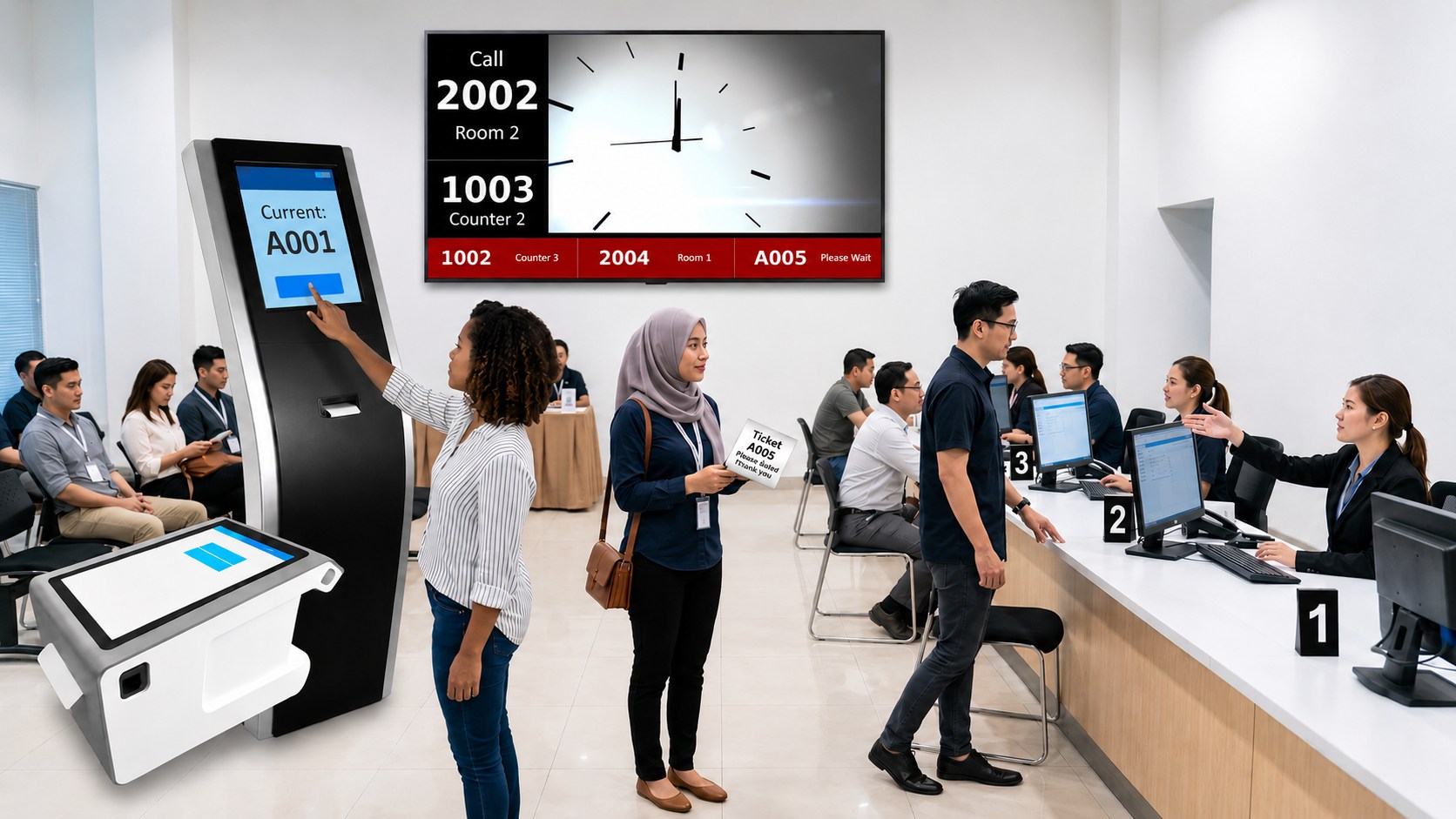
One Queue Manager, any number of ticket printers, counters and TV displays.
Four parts, and you choose how many of each
Start with a printer and one counter. Add displays, counters and a web manager as you grow — the original hardware keeps working.
Ticket Issuing
Three ways to put a number in your customer's hand.
Queue Manager
Where staff call, create, cut and push queue numbers.
Display & Calling
Show the number on any TV, and call it out loud.
Server
Your own machine holds the data. Nothing leaves the building.
Three ways to issue a number
Mix them freely — a kiosk in the lobby, a tablet at reception, a printer at the door.
Touch the screen, take the ticket
The QTP is the workhorse: a touch screen with your service buttons on it and a thermal printer underneath. It pulls its button layout from the Queue Manager, so changing the services on offer is a change you make once, centrally — not on every unit.
- Service buttons configured from the Queue Manager
- Prints instantly on 80mm thermal paper
- Shows its own connection and printer status on screen
- Also runs standalone with no server at all

A lobby kiosk, or a tablet in a staff member's hand
For a bigger entrance, a free-standing kiosk running the Windows BMO ticket generator gives customers a large, obvious place to start. Where a queue forms unpredictably, staff can log in to the BMO App on a tablet and issue numbers by hand.
- Free-standing kiosk or counter-top unit
- BMO App on any Android tablet — staff log in
- Same numbering pool as every other ticket source

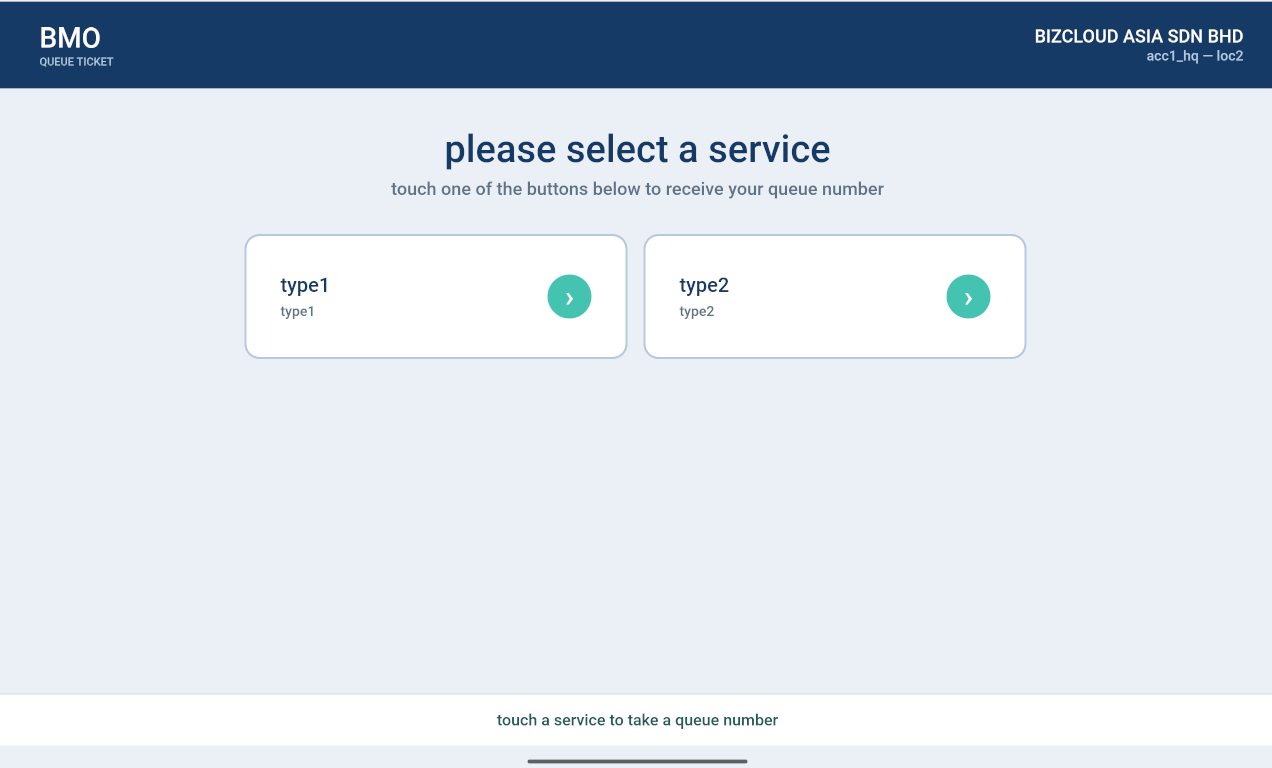
Multiple ticket types, and numbers that reset every day
Set up as many button types as you have services — deposit, payment, collection, each with its own number series. Numbering renews automatically every day, so Monday morning starts clean without anyone touching the machine.
- One button per service, each with its own prefix and series
- Daily reset configured once in the Queue Manager
- Change buttons centrally — every printer follows
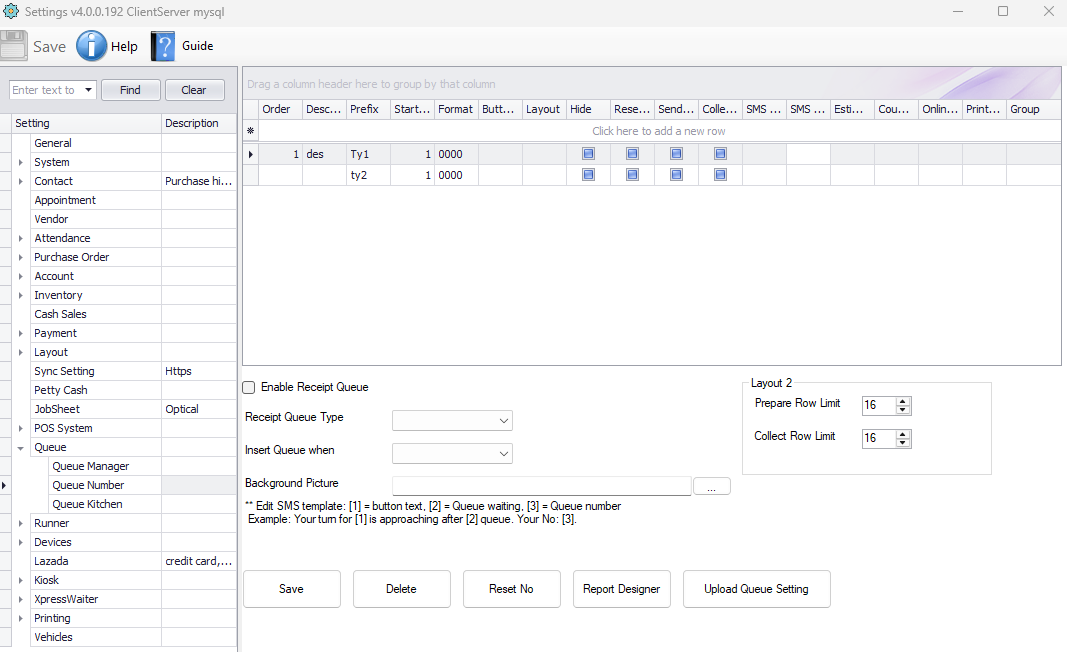
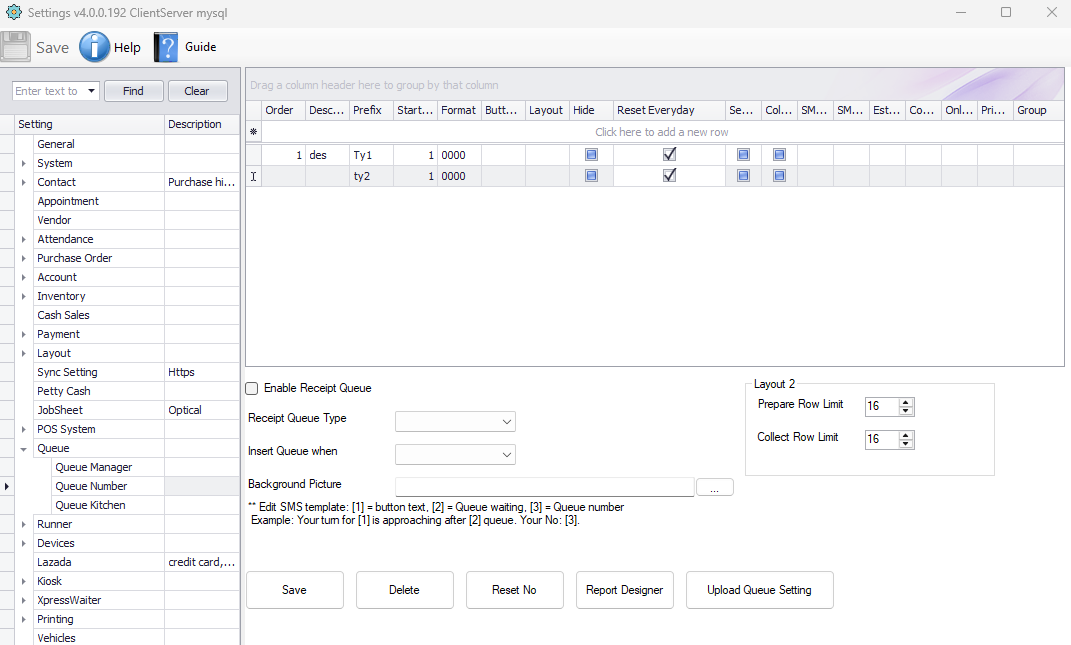
Where the counter actually works
Call the next number, create one by hand, cut a queue, or push a customer to another counter. Same functions on Windows, on a tablet, or in a browser.
The full desktop manager
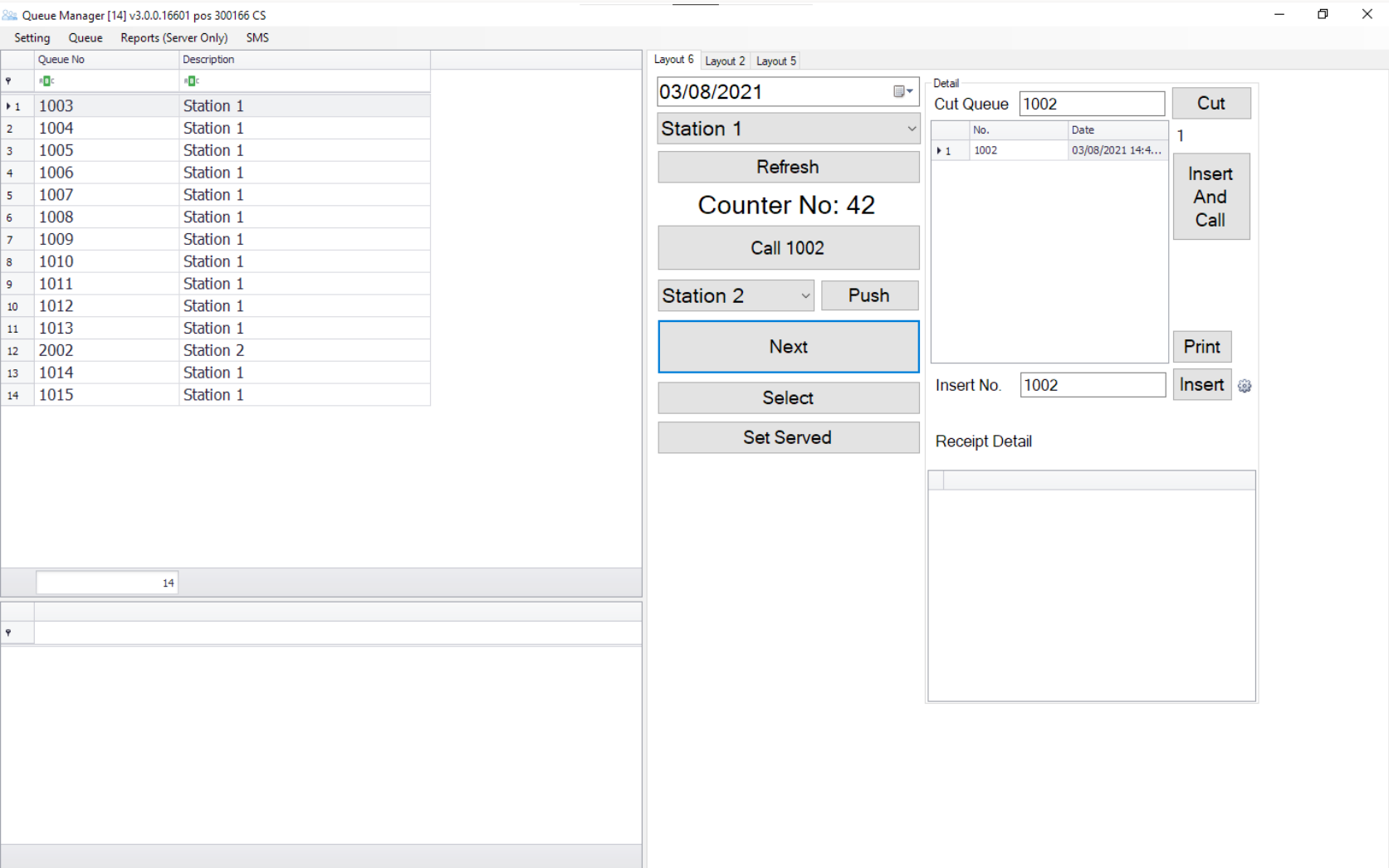
Install it on the counter PC. You get the waiting list, the current number, and one-press controls for Call, Next, Push and Cut. Install a copy at every counter — one of them acts as the server the printers and displays connect to.
- Call, Next, Select and Set Served in one press
- Cut a queue number, or insert and call one manually
- Push a customer to another counter mid-service
- Built-in reports on the server copy
No PC at the counter? Use a tablet or a browser
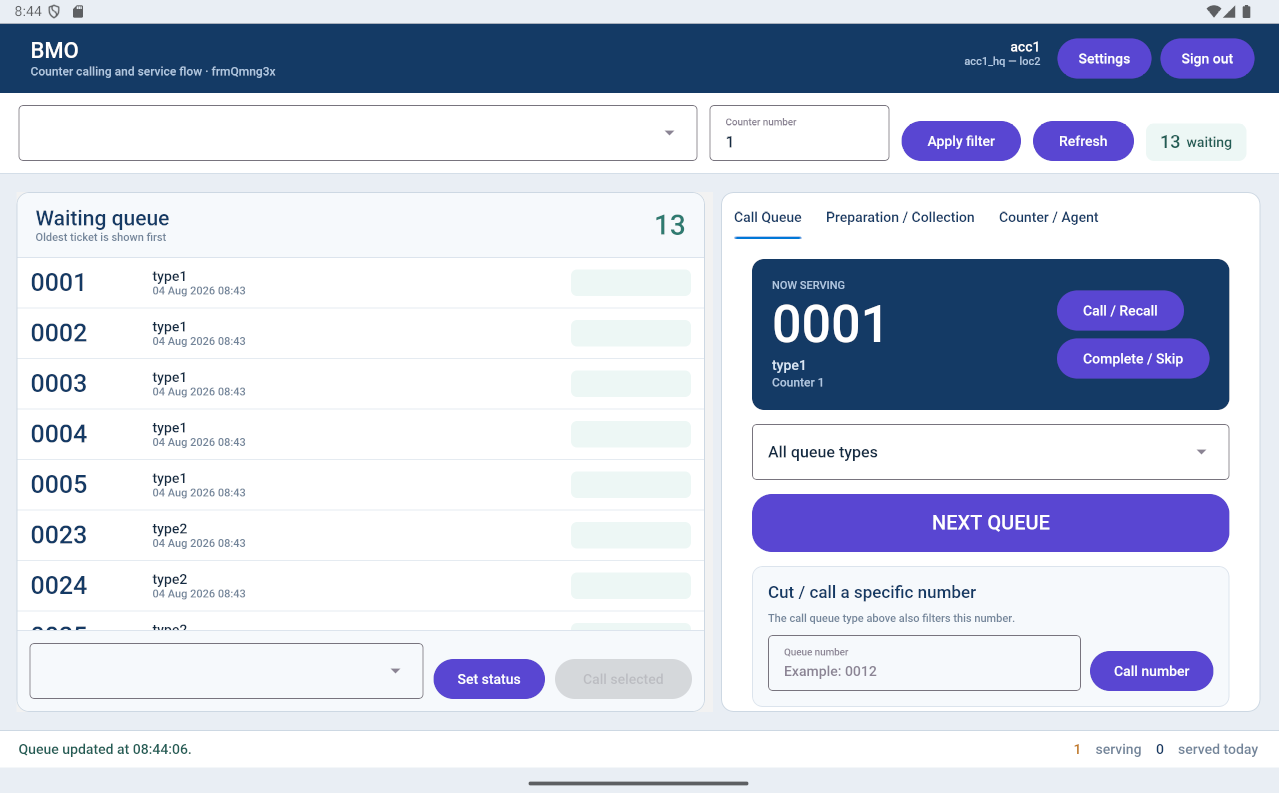
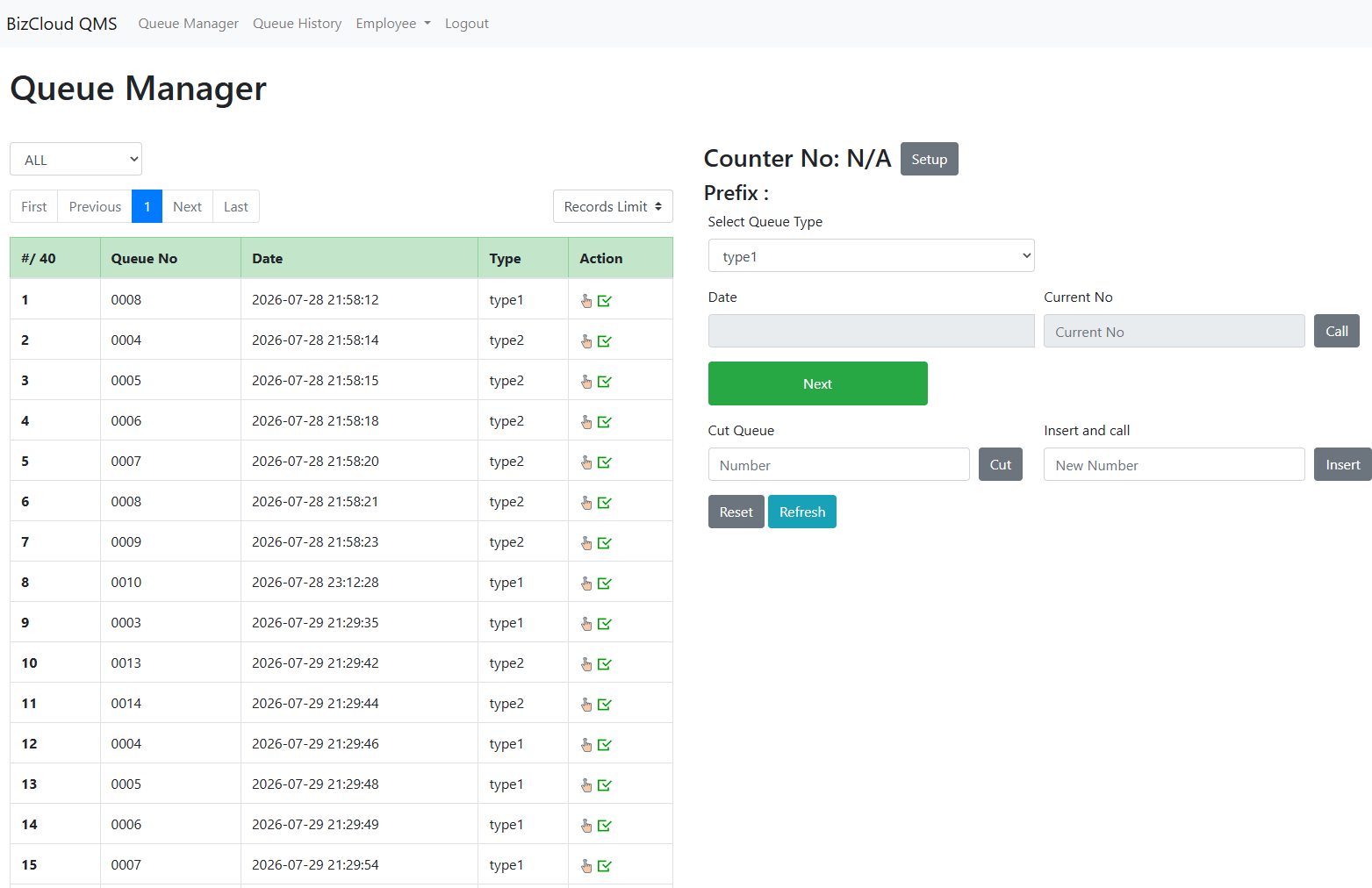
The BMO App turns an Android tablet into a counter manager — useful where there is no room for a PC. The Web Queue Manager goes further: staff open a browser, log in, and work the queue from any machine on the network.
- Android tablet manager via the BMO App
- Browser-based counters — nothing to install
- Counter quantity is set in your company profile
- Number of web clients depends on your plan
Any TV becomes a queue display
Several layouts to choose from, and a voice call-out so nobody misses their turn.
Numbers on the TV, with sound
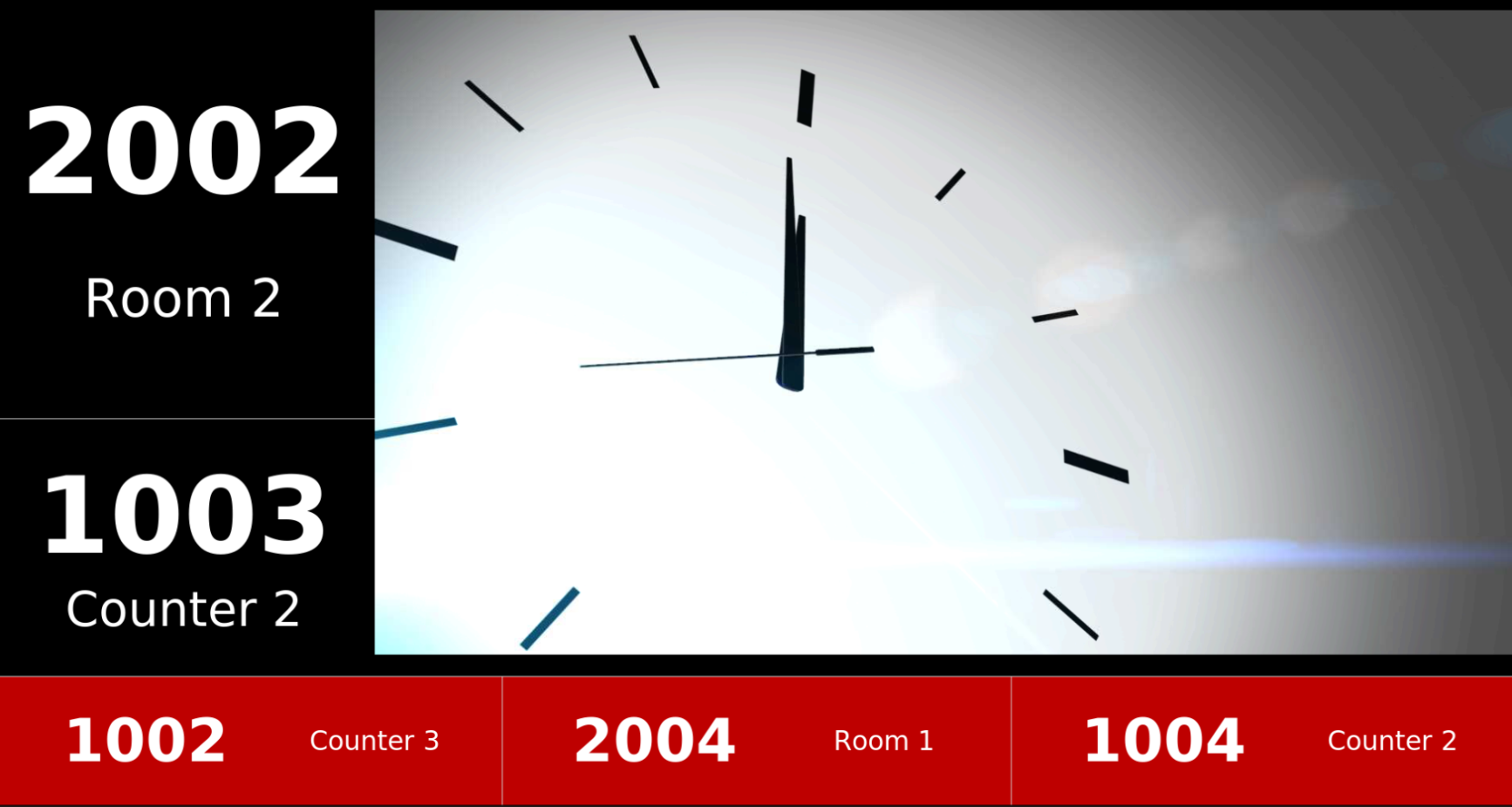
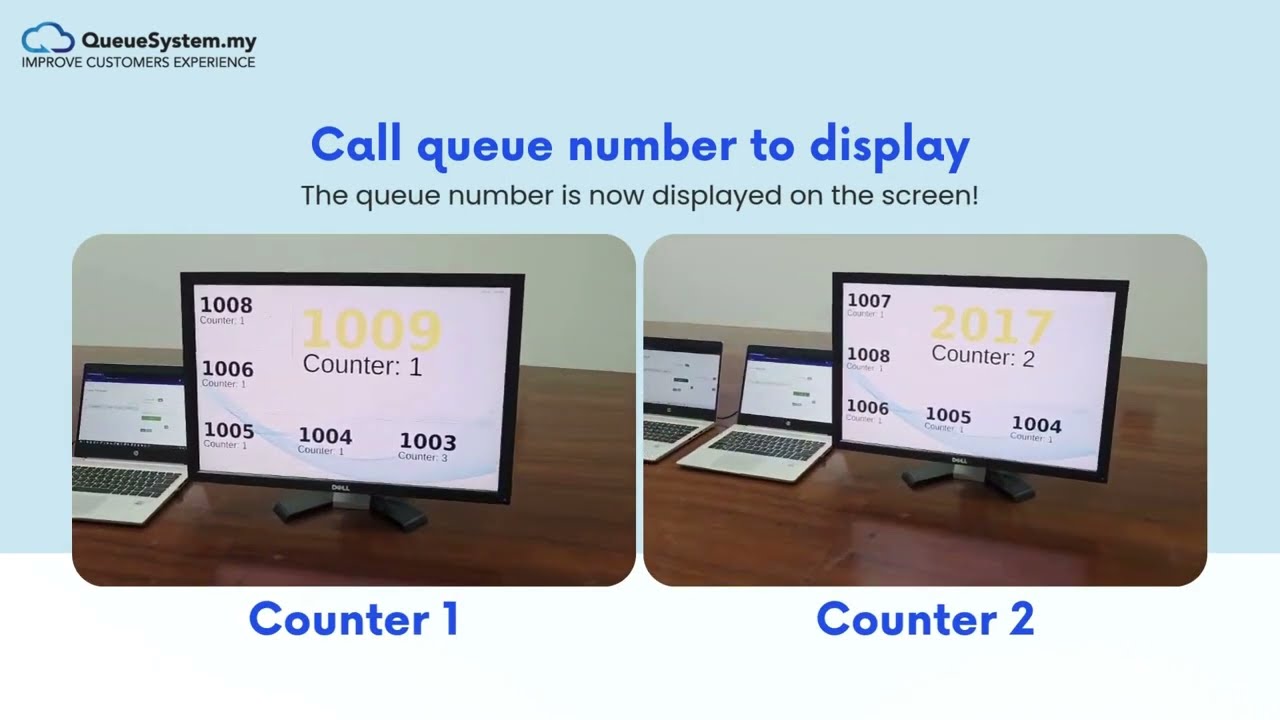
QDisplay connects to the Queue Manager and puts the called numbers on screen with the counter or room beside each one. Run several screens around the building — and it is worth keeping one purely for the sound, so the call is heard as well as seen.
- Multiple screens, all fed from the one manager
- Several ready-made layouts, each configurable
- Room for video or images alongside the numbers
- Keep one display for voice call-out only
A keypad for calling, nothing more
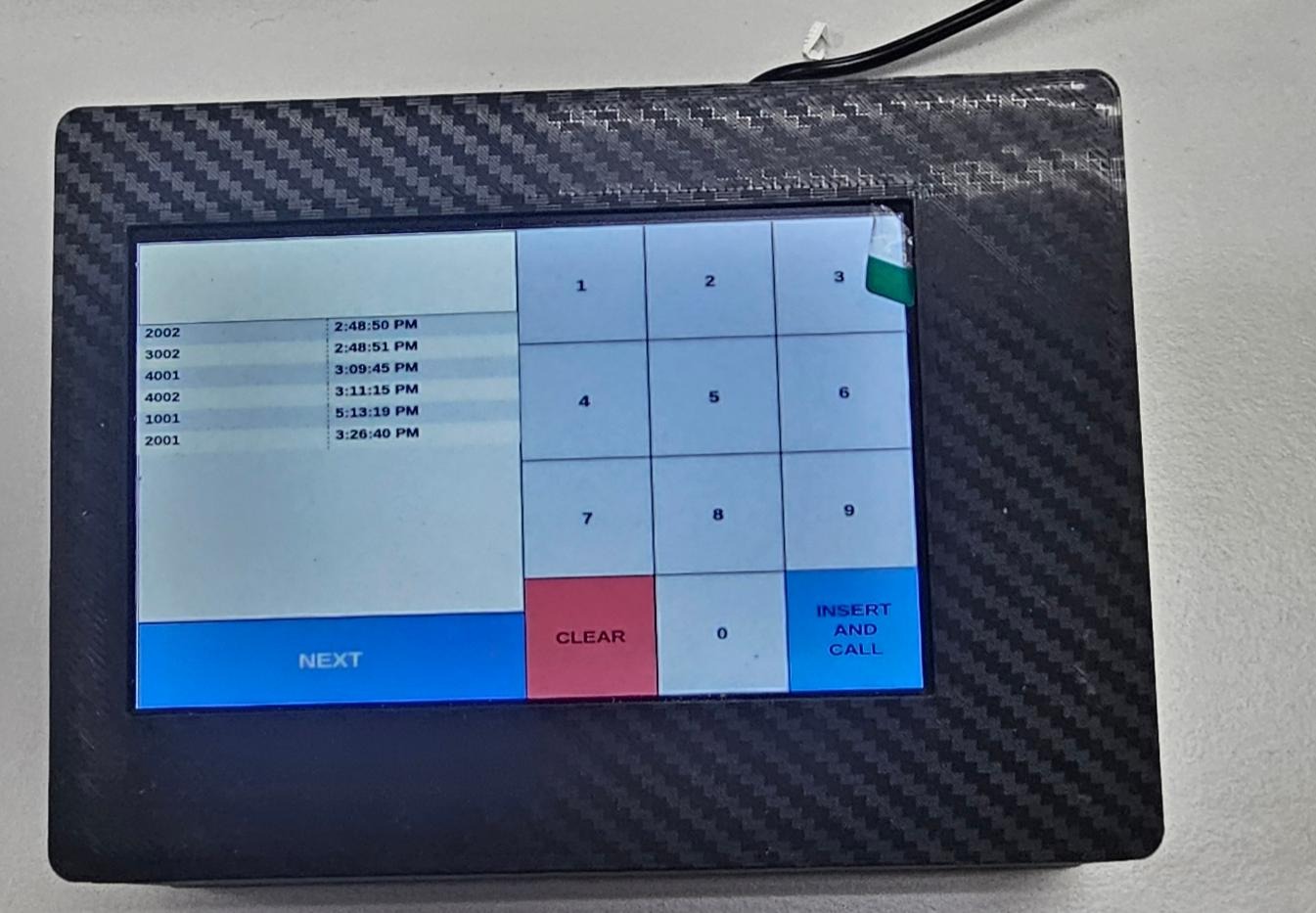
Where a counter only needs to call the next number, a full PC is overkill. QCaller is a 7-inch unit — about the size of a small tablet — that connects to the Queue Manager and does exactly one job: call the next number, or key in a specific one.
- Just 7 inches — sits in the corner of the counter
- Next, Clear, and Insert-and-Call on a keypad
- Shows the numbers already called with their times
- No PC needed at that counter
Everything talks to one Queue Manager
Install as many counters, printers and displays as you need. One Queue Manager — Windows or Android — acts as the server that the rest connect to.
Queue Manager
Windows, Android tablet or web browser. Calls, creates, cuts and pushes queue numbers. Install one per counter — one of them acts as the server.
QTP printers and QDisplay screens connect here.
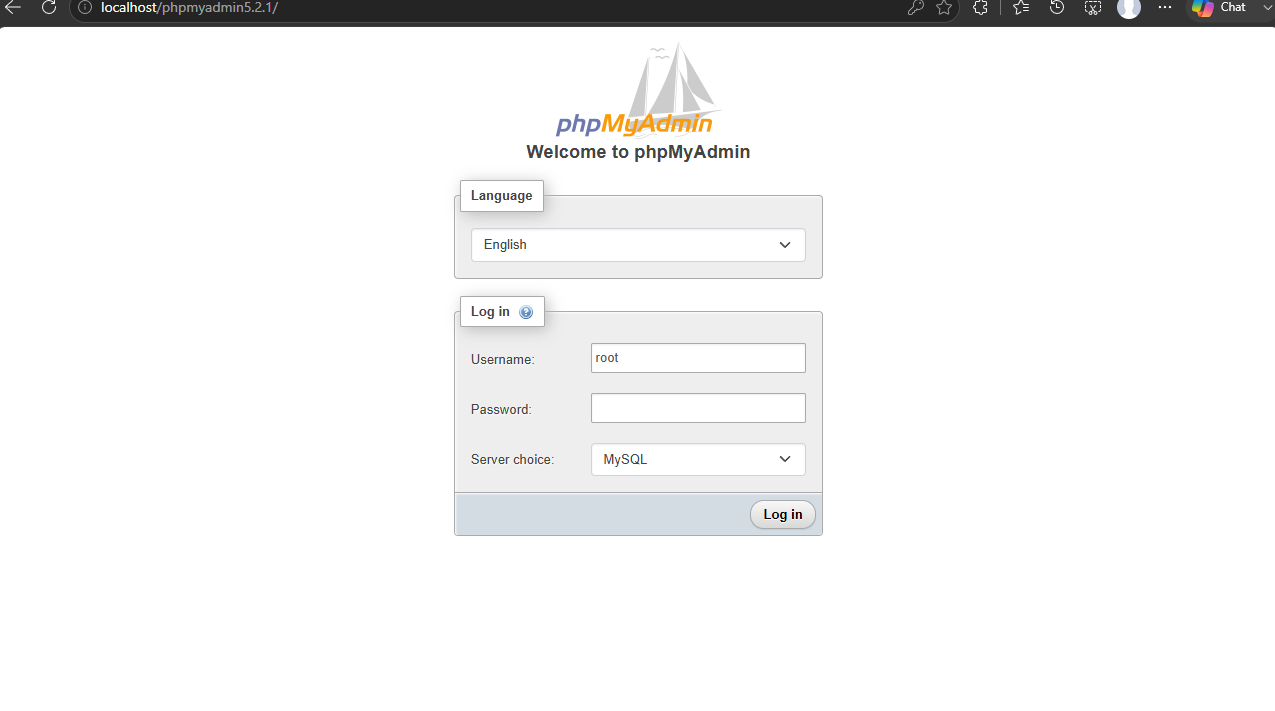
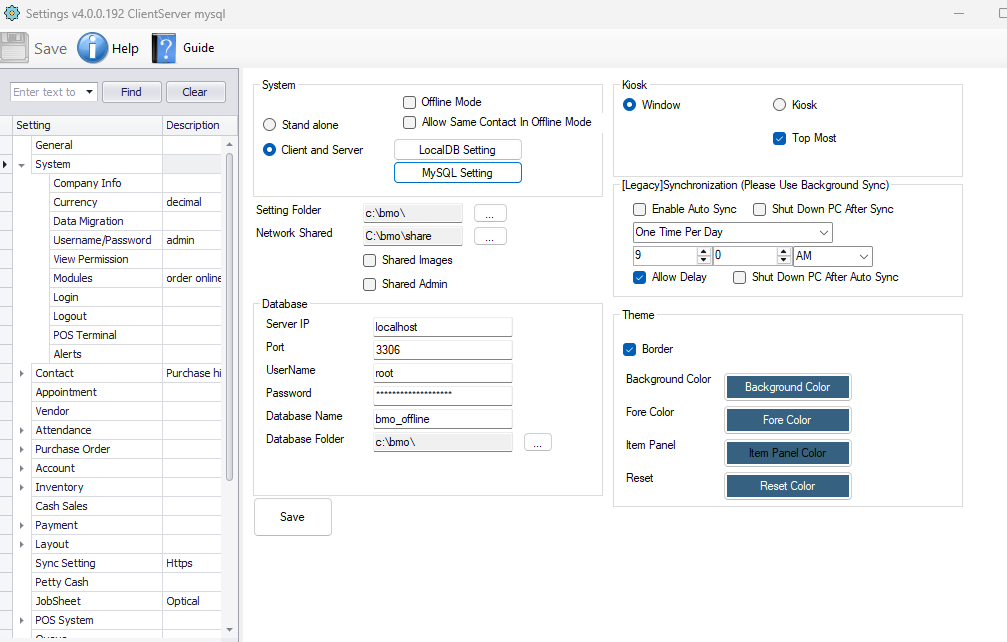
MySQL can sit on the same machine, or on its own WAMP server.
No server at all? The QTP also runs standalone.
Plug in a QTP on its own and it prints running queue numbers straight away — no Queue Manager, no MySQL, no network. There's no counter calling or TV display in this mode; add a Queue Manager later and the same printer joins the full system.
The data stays in your building
A single Windows machine running WAMP holds the MySQL database. For a Windows-based setup it is optional — the Queue Manager can keep the database itself. For tablet and app-based setups a MySQL server is required, and it can live on the same machine as the Queue Manager or on its own.
- One Windows PC with WAMP is enough
- Optional for Windows-only setups
- Required when tablets or the app are involved
- Nothing is sent outside your network
What you need to run it
| Part | What it needs |
|---|---|
| Queue Manager | A Windows PC at the counter, or an Android tablet running the BMO App |
| Database | MySQL via WAMP — on the same PC, or its own machine. Required for app-based setups |
| Ticket printer | QTP unit with 80mm thermal paper, on the same network as the manager |
| Display | Any TV with an HDMI input, plus a display controller or mini PC |
| Network | A normal wired or wireless LAN. No internet connection required |
| Counters | Counter quantity is set in your company profile; web client count depends on your plan |
When keeping it in the building is the right call
The internet is not your problem
Clinics, government counters and service centres cannot stop serving because a line dropped. On-premise keeps running on your own LAN regardless.
Your data never leaves
The database sits on a machine you own, in a room you control. For agencies with data-residency rules, that settles the question.
Instant response
Calling a number is a local network round-trip, so the display and the voice fire the moment the button is pressed.
Prefer customers to queue from their phone before they arrive?
See the WhatsApp queue systemTwo short demos
The ticket printer in action, and the QR side of the system. Nothing loads from YouTube until you press play.

Prefer written steps? The hardware setup guide walks through the same configuration with screenshots.
Tell us how many counters you have
We'll size the system, quote the hardware, and install it on site — anywhere in Malaysia and Singapore.