The counter software that actually runs the queue
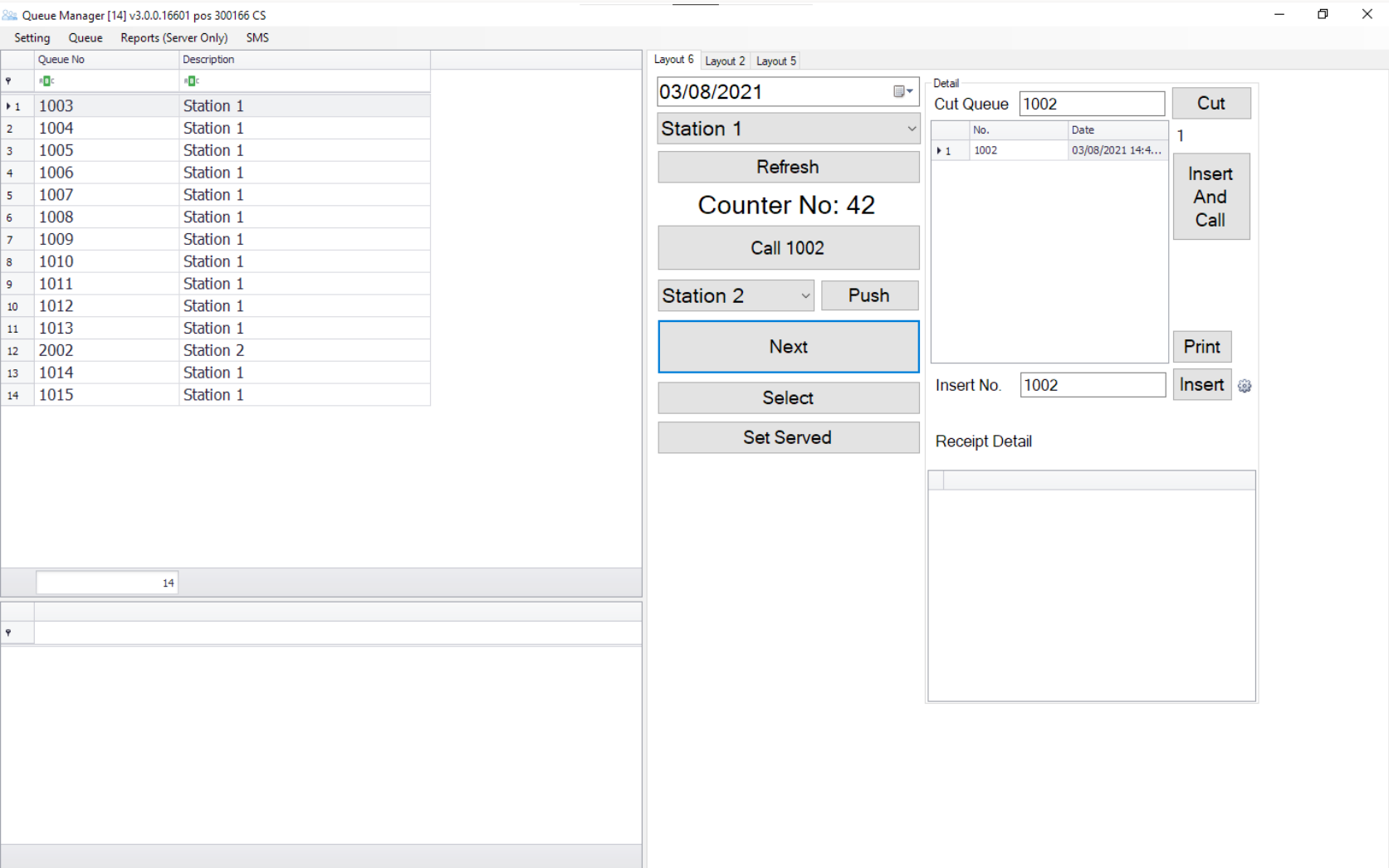
Install it on the counter PC and your staff get one screen: who is waiting, who they are serving, and the buttons to move things along. Call the next number, push a customer to another counter without issuing a new ticket, cut a queue, or create a number by hand.
Everything a counter needs, on one screen
The waiting list sits on the left, the counter's own controls on the right. No hunting through menus during a busy morning.
Calls the number shown. The display updates and the announcement plays.
Takes the next waiting number automatically — the button staff press all day.
Sends the customer to another station keeping the same number. No new ticket.
Removes a number from the queue when someone leaves or the ticket is void.
Creates a number by hand and calls it immediately — for walk-ups and exceptions.
Marks the customer as served and closes off the visit.
Pick any waiting number from the list instead of taking them in order.
Reprints the ticket detail when a customer needs it again.
Send a customer onward — same ticket
No second ticket, no second queue
When a customer needs another department, staff push them across in one press. The customer keeps the number they already have, the receiving counter sees them arrive, and nobody is sent back to the ticket machine to start again.
- Transfer to another counter in a single press
- Customer keeps their original queue number
- Receiving counter is notified automatically
- No duplicate tickets, no confusion at the display
- Cuts total waiting time across the whole visit
Healthcare
The patient finishes with the doctor and is pushed to the pharmacy queue on the same number.
Banking
A request that needs approval moves to the manager's desk without the customer re-queuing.
Government
Department-to-department transfers for applications that touch more than one counter.
One copy per counter, one of them the server
Install the Queue Manager on each counter PC and give each one its counter number and station. Staff filter the waiting list to their own station, or work the whole queue. One of those copies acts as the server the printers and displays connect to.
- Each counter has its own counter number and station
- Filter the waiting list by station, or see everything
- One installation acts as the server for QTP and QDisplay
- Reports run on the server copy
Standalone, or client and server
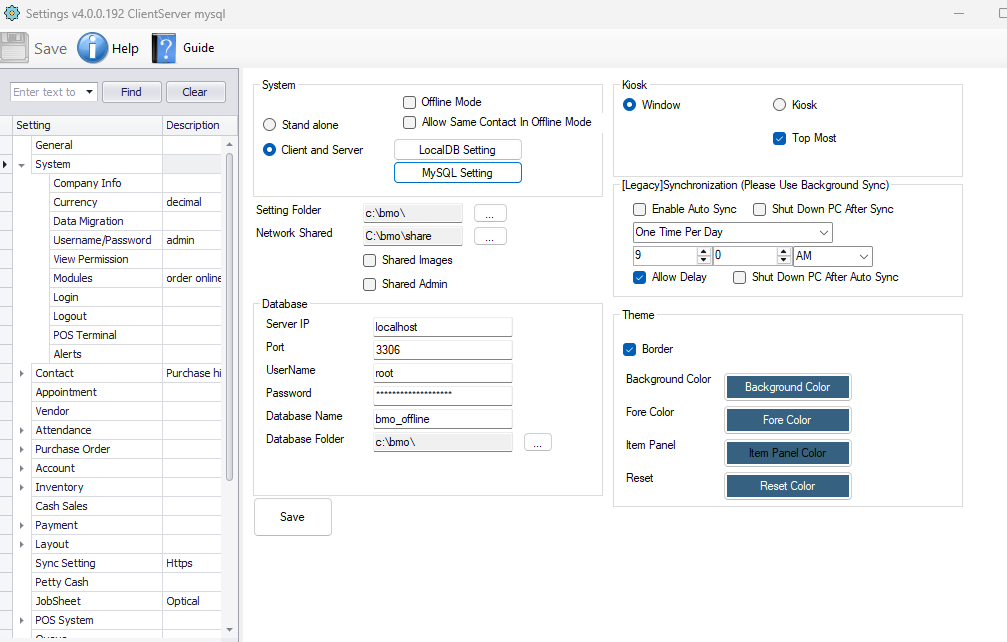
The same software, two ways of running it. You choose at setup, and can move from one to the other later.
One PC does everything
The Queue Manager holds the database itself. Simplest possible setup and the right answer for a single-counter clinic or shop.
- No separate database machine to buy or maintain
- Fewest moving parts, fastest to install
- Ideal for one counter
Several counters, one database
Each counter runs the Queue Manager as a client against a shared MySQL database, so every counter sees the same queue in real time.
- Point every client at the same database
- MySQL can share the machine or have its own
- Required once tablets or the app are involved
The connection is a handful of fields
Pick Stand alone or Client and Server, then point the manager at the database — server address, user, and database name. There is an offline mode for the times the network is down, and a kiosk option that locks the manager full screen so counter staff can't wander off into Windows.
- Stand alone or Client and Server, chosen at setup
- Database address, user and name in one panel
- Offline mode for network outages
- Kiosk / Top Most to lock the screen to the queue
- Theme colours to match your counter setup
What it needs, what it does
| Item | Detail |
|---|---|
| Runs on | A Windows PC at the counter |
| Deployment | Stand alone, or client and server against a shared MySQL database |
| Queue actions | Call, Next, Select, Set Served, Push, Cut, Insert and Call, Print |
| Stations | Counter number and station per installation; filter the list by station |
| Server role | One installation acts as the server that QTP printers and QDisplay connect to |
| Reports | Available on the server copy |
| Ticket setup | Ticket types, prefixes, formats and the daily reset are configured here |
| Screen options | Windowed or kiosk mode, always-on-top, configurable theme colours |
| Offline | Offline mode available when the network is unavailable |
| Installation | On-site setup and staff training across Malaysia and Singapore |
How many counters are we setting up?
Tell us the number of counters and whether you want the database on its own machine. We'll size it, quote it, install it on site and train your staff.