For the people who did stay in the room
Not everyone wanders off. Put the online queue on a TV in the waiting area and the number being served is there for anyone watching — while the WhatsApp alert still reaches whoever stepped outside. Same queue, two ways of being told.
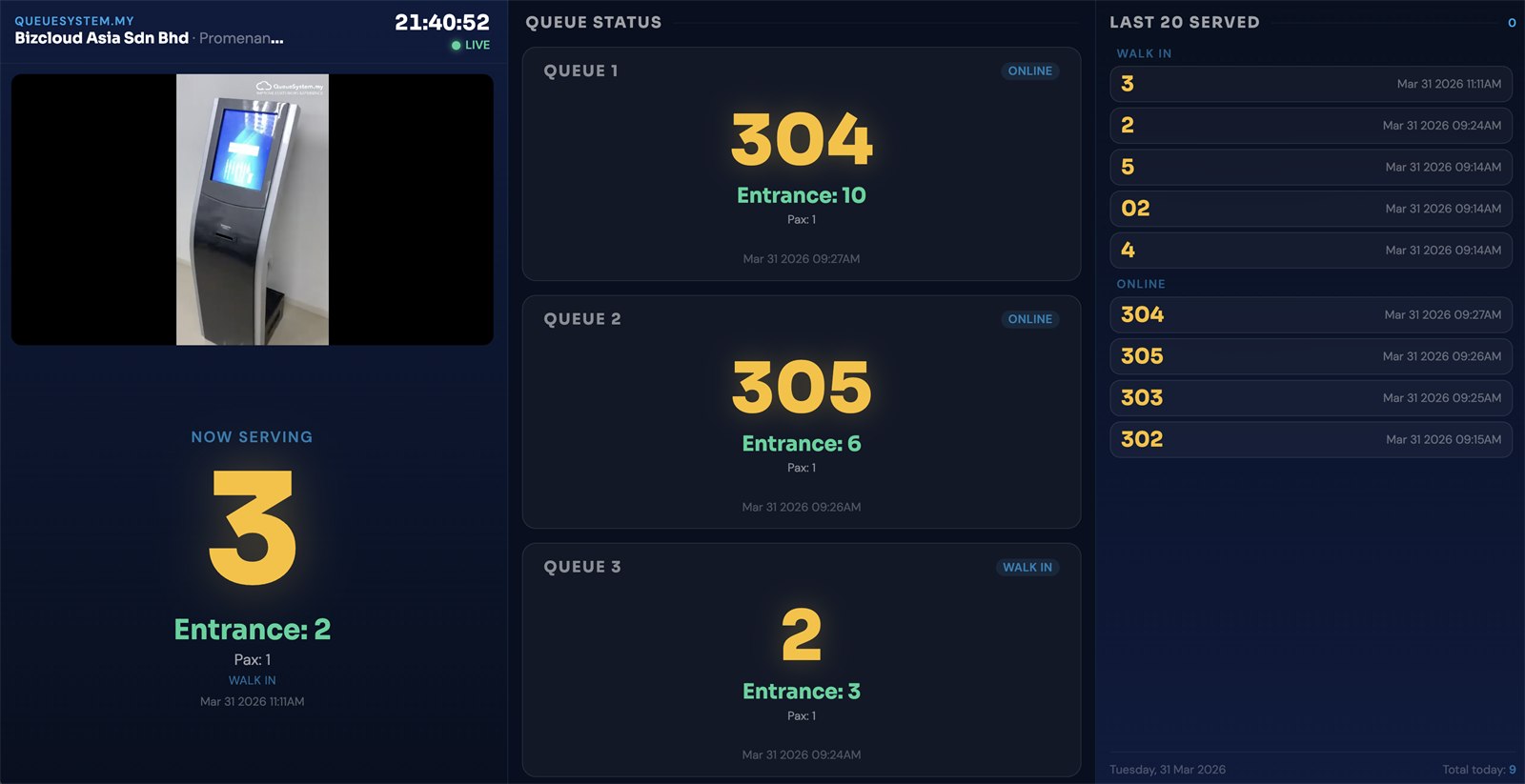
Three zones, readable from the back
The default layout answers the only three questions anyone in a waiting area actually has. Other layouts rearrange the same information, or make room for a video beside it.
Now serving
The number being called right now, in the largest type on the screen, with the entrance to walk to underneath. Your company name and branch sit above it, with a live clock.
- Number and entrance, unmissable
- Pax count and queue type
- Branch name, clock and live indicator
- Room for a video or image panel above
Queue status
One card per active counter, each showing its current number and entrance, tagged by queue type so walk-in and online are told apart at a glance.
- A card per counter or queue
- Number, entrance and pax on each
- Walk-in and online clearly labelled
- Time each number was called
Last 20 served
Recently served numbers, grouped by queue type, with a running total for the day. It settles the "have they called me yet?" question without anyone asking the counter.
- The last 20 numbers served
- Grouped by walk-in and online
- Date and time against each
- Total served today in the footer
Big number, and the entrance beside it
A queue number on its own sends people to the wrong desk. Every called number on this screen carries the entrance to walk to, in a different colour, so nobody has to guess or ask. Pax count and queue type sit underneath for the staff's benefit.
- Number sized for the back of the room
- Entrance shown in its own colour
- Queue type labelled — walk-in or online
- Time of the call, for anyone who looked away
The screen and the phone, same queue
The display is fed by the same queue as the WhatsApp alerts, so there is never a mismatch between what the TV shows and what a customer was told. Staff press NEXT once — the screen updates and the message goes out together.
- One call updates the screen and sends the WhatsApp
- People in the room watch, people outside get messaged
- Live indicator so staff know it's current
- No separate display software to run
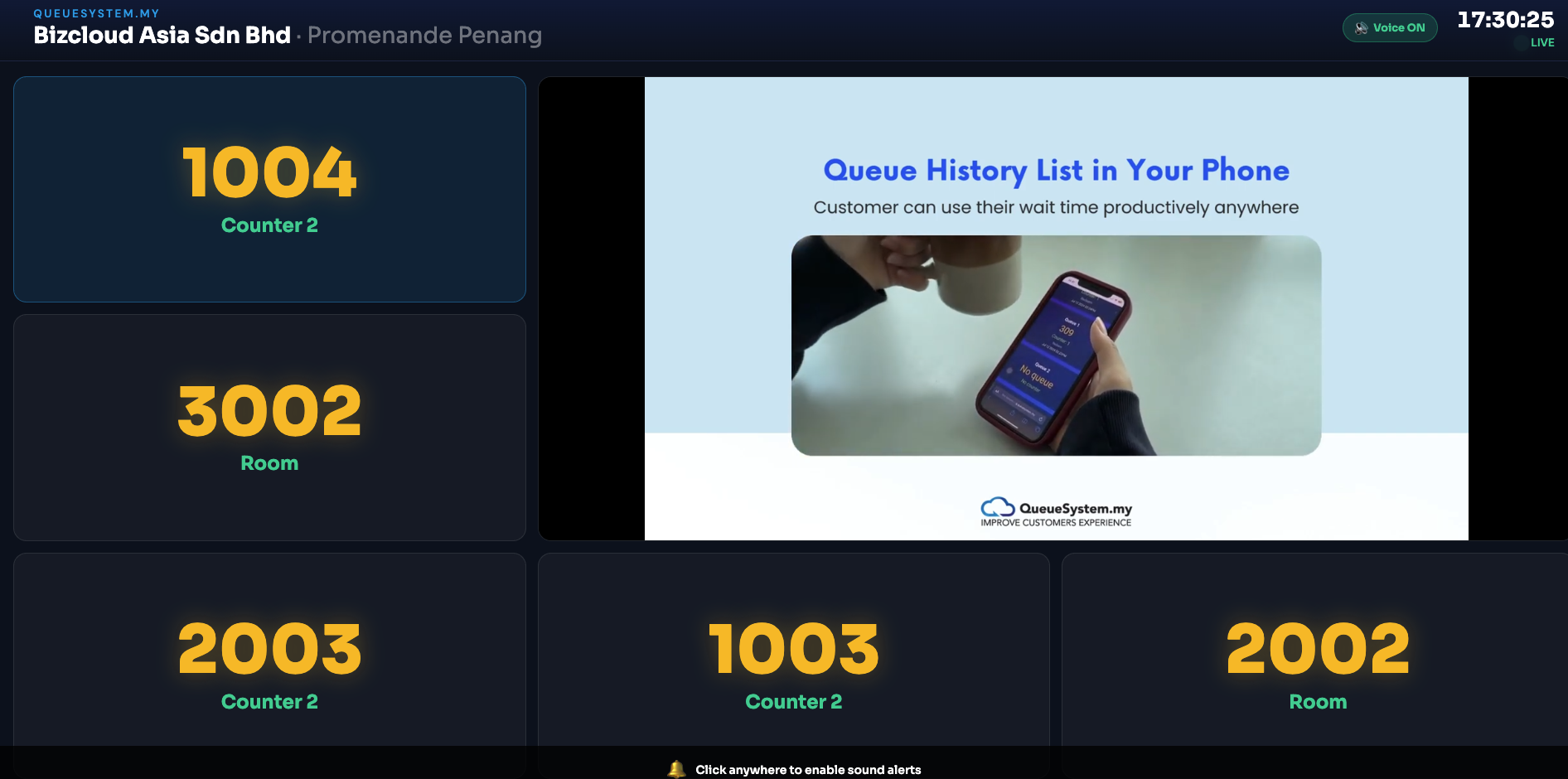
Design the screen in your waiting area yourself, in a few clicks
A pharmacy needs a preparing-and-collect board. A clinic with six rooms needs six counters on screen. A bank wants its video beside the numbers. Pick the layout that fits the room; no site visit and no new URL.
See it before you use it
Open Display Layout and every layout is drawn as a miniature of the real screen, colour-coded for Now Serving, queue cards, video and lists. Click one and a live preview appears with sample numbers, so you know what will be on the wall before you save.
- A catalogue of layouts, chosen by eye from thumbnails
- Live preview with sample queue numbers
- One layout for all screens, or override a single device
- A marker on the device tab shows which screens differ
- Layouts that will not suit a screen are flagged before you save
- The change reaches the screen on its next refresh
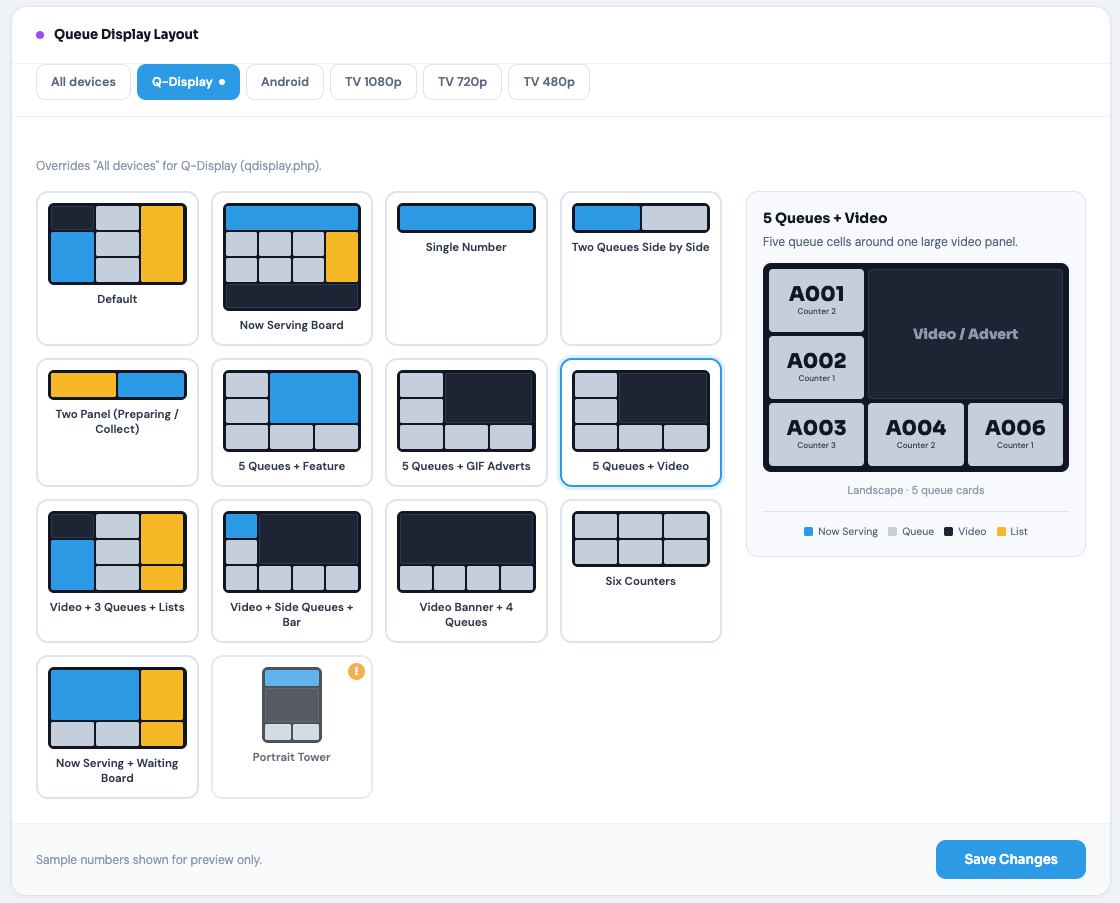
- Default
- Single Number
- Two Queues Side by Side
- Six Counters
- Now Serving Board
- Now Serving + Waiting Board
Clinics, government counters and anywhere the numbers are the whole message.
- Two Panel (Preparing / Collect)
Pharmacies and order counters that separate "being prepared" from "ready to collect".
- 5 Queues + Video
- 5 Queues + GIF Adverts
- 5 Queues + Feature
- Video + 3 Queues + Lists
- Video + Side Queues + Bar
- Video Banner + 4 Queues
Waiting areas that also run promotions, health education or entertainment.
- Portrait Tower
Slim vertical screens beside a doorway or lift lobby.
Three steps, no special hardware
If the screen can open a web page, it can be your queue display.
Any TV or monitor
Use what's already on the wall. A TV with a browser, or any screen with a small media box or mini PC behind it.
Open the display page
Point the browser at your display URL and put it full screen. Pick its layout in the portal. Nothing to install or license per screen.
Leave it running
It updates itself from the live queue. Add a second screen elsewhere in the building the same way.
Add a screen to your WhatsApp queue
Tell us about your waiting area and how many counters you call from — we'll set the display up with your branding and get it running.