One screen your staff can learn in a minute
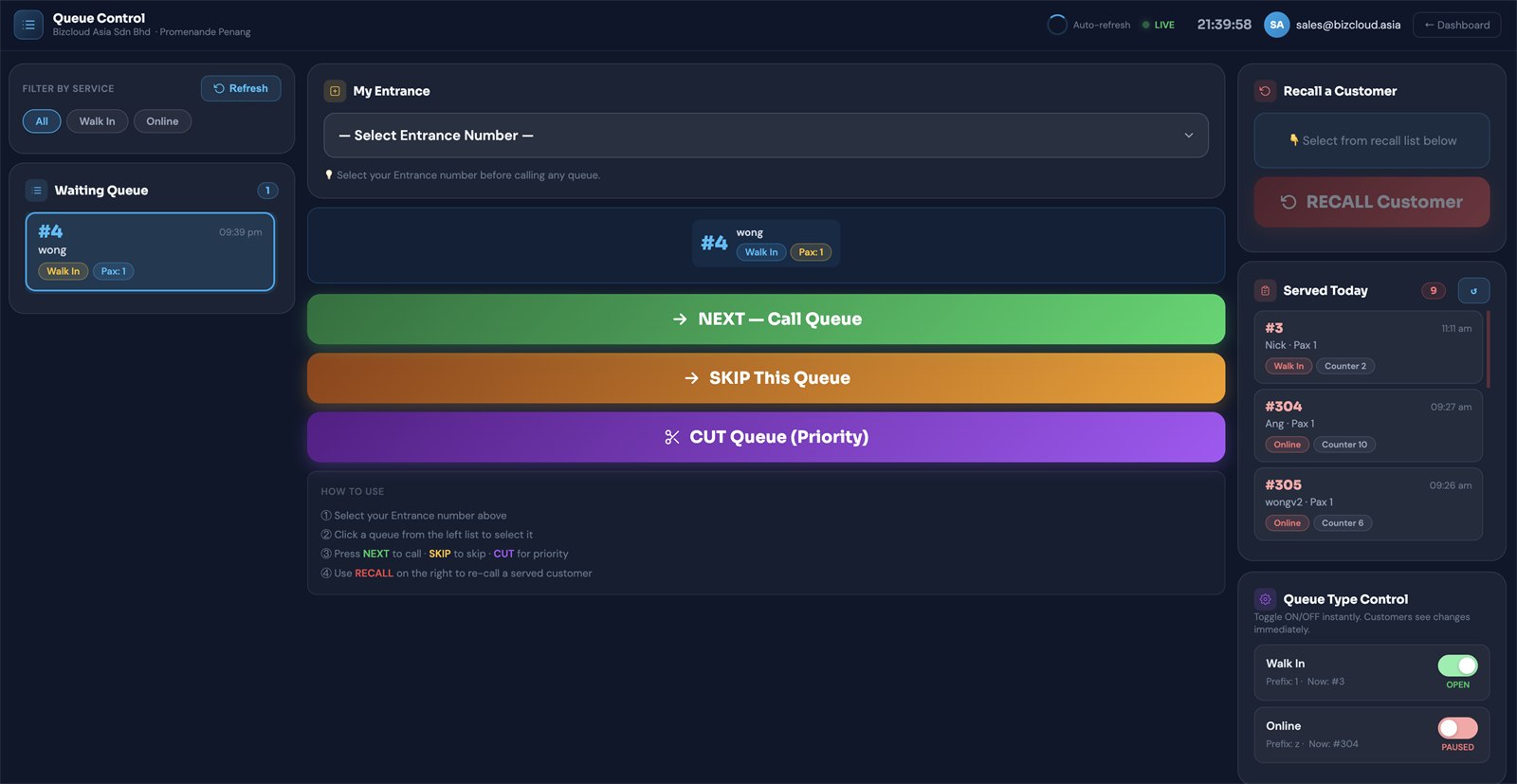
Queue Control opens in any browser. The people waiting are on the left, the call buttons and the Now Serving timer are in the middle, and the recall list, served-today history and queue switches are on the right. Press NEXT, serve the customer, press COMPLETE — that's the job.
Five things staff ever press
Deliberately few, deliberately large, and colour-coded so nobody hits the wrong one during a rush. The last one is new: it closes the ticket and stops the timer.
Calls the selected customer to your entrance. The WhatsApp alert goes out at the same moment.
The customer did not come forward. Skip them and move on without losing the record.
Push someone to the front — an elderly visitor, an appointment, an urgent case.
Bring back somebody already served, from the recall list, without issuing a new number.
Close the ticket when the customer is done. The timer stops and the serving time is recorded. Or mark No Show, Cancelled or your own status.
Pick your entrance
Set which entrance or counter this session is working as, before calling anyone.
Select a customer
Click a card in the waiting queue on the left to select it.
Call, skip or cut
NEXT to call, SKIP to pass over, CUT to give priority.
Complete when done
Press COMPLETE in the Now Serving panel. The timer stops and the serving time is recorded.
Recall if needed
Bring back a served customer from the recall list on the right.
Left, middle, right — and nothing hidden
Waiting queue
Everyone who scanned and submitted, in order, with a live count. Filter by service type — all, walk-in, or online — when you only handle one.
- Number, name, pax and join time per card
- Walk-in and online tickets tagged apart
- Filter chips for service type
- Manual refresh alongside auto-refresh
Calling
Your entrance number, the customer you have selected, the big call buttons, and underneath them the Now Serving panel with a live timer on every ticket you have called.
- Entrance number set per session
- Selected customer shown before you call
- NEXT, SKIP, CUT and TRANSFER, colour-coded
- Now Serving panel with timer, Start, COMPLETE and Other status
Recall & served
Everyone served today with their status and serving time, and a recall control to bring one of them back. Underneath, switches to open or pause each queue type.
- Recall a served customer without a new number
- Served-today list with status, counter and serving time
- Running total for the day
- Queue type switches, applied instantly
Know how long every customer waited, and how long service took
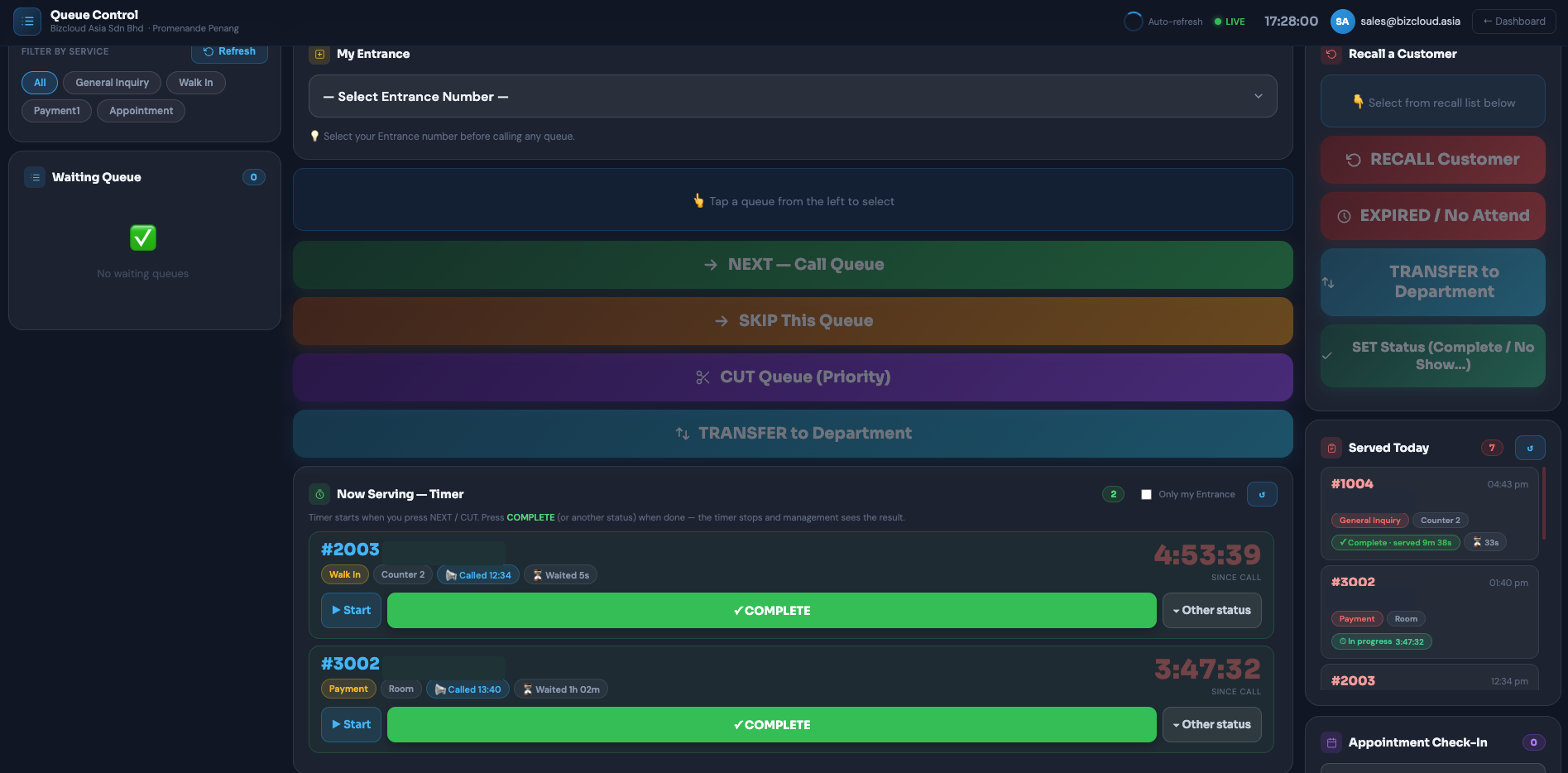
Until now the system recorded when a number was called and nothing after. Now every called ticket runs a clock, closes with one tap, and leaves a record management can report on.
A live clock on every called ticket
The moment staff press NEXT or CUT, the ticket appears in the Now Serving panel with a timer counting up. It turns amber after 5 minutes and red after 15, so a long service is visible from across the room. Nothing new to learn: the panel sits under the buttons staff already use.
- Timer starts on NEXT or CUT, shows waiting time since the number was taken
- Start (optional) marks when the customer reaches the counter
- COMPLETE closes the ticket and records the finish time
- Other status: No Show, Cancelled, or one you define, such as "Documents Incomplete"
- A ticket called again after closing shows a Re-called badge
- Filter to only my entrance, or see every counter
The Serve Status Report
Date range, service and counter filters, export to Excel, CSV or PDF. Every ticket keeps its own requested, called, started and done times, so a single case can be reconstructed months later.
Close a queue without closing the counter
Each queue type has its own switch. Flip Online to paused when you're swamped and the QR stops issuing new online numbers immediately — customers see the change at once — while walk-ins carry on as normal. Flip it back when you've caught up.
- One switch per queue type
- Takes effect instantly for customers
- Each type shows its prefix and current number
- Pause one type while the others keep running
Toggle on or off instantly — customers see the change immediately.
Live, without anyone pressing refresh
The panel auto-refreshes and shows a LIVE indicator with the current time, so staff can tell at a glance that what they're looking at is real. The signed-in account and the branch are in the header, which matters once you run more than one location.
- Auto-refresh with a live status indicator
- Company and branch named in the header
- Signed-in staff account always visible
- One click back to the dashboard
See it from both sides
Try the live demo as a customer, then ask us to walk you through this side on a call using your own service types.