One ticket type per service — and numbers that start clean every morning
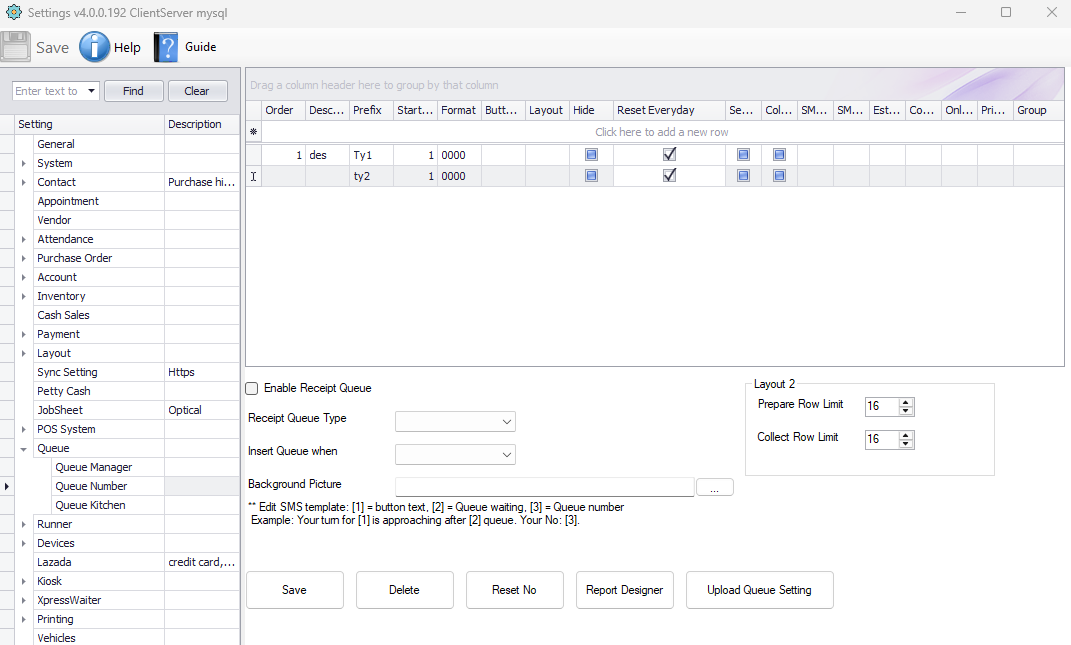
Every service you offer gets its own row: a prefix, a starting number, a number format and a button label. Tick Reset Everyday and the series restarts by itself overnight, so Monday never begins at 4,812.
In the Windows Queue Manager, open Settings › Queue › Queue Number. Every ticket type in your system is one row in that grid. Change it here and every QTP printer, kiosk and tablet picks up the same list.
Add a row for each service
Deposit, Payment, Collection, Enquiry — whatever your counters actually handle. Each row carries its own prefix and starting number, so the series for one service is independent of the next, and the button label is what the customer sees on the QTP, the kiosk and the tablet.
- One row per service, in the order you want them shown
- Prefix and starting number set per type
- Button text drives what appears on every ticket source
- Hide a type without deleting it when a service pauses
- Group types together for multi-counter routing
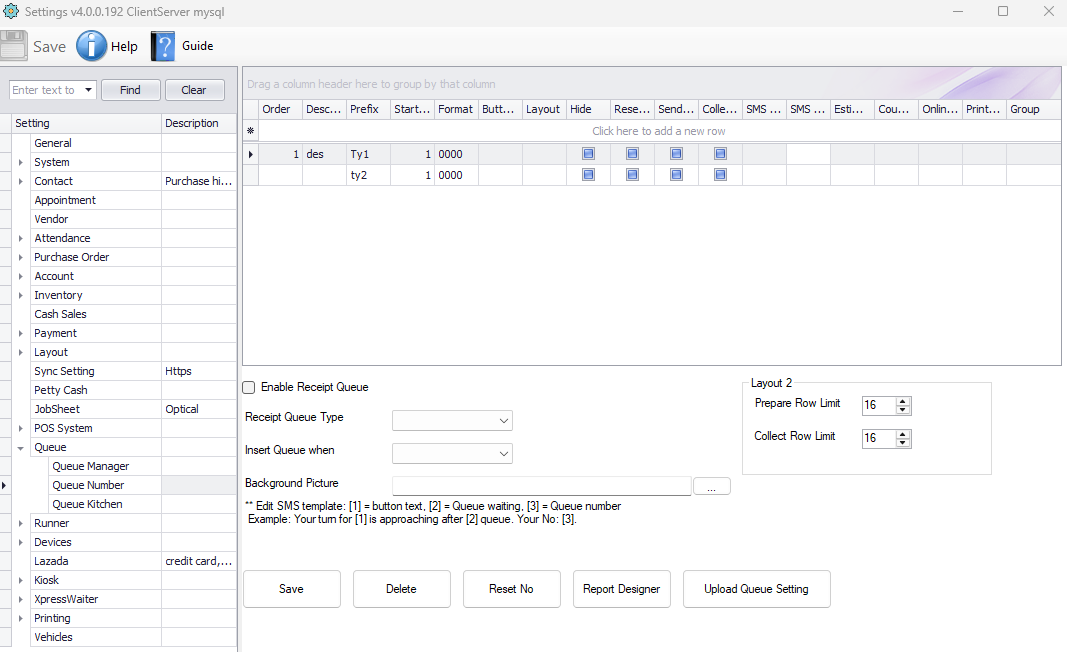
Ty1 and ty2, both starting at 1 with format 0000Tick Reset Everyday and forget it
The reset is a checkbox on each ticket type, not a global switch — so you can restart the walk-in series each morning while letting a job or reference series run on continuously. There is also a Reset No button for the times you need to zero a series by hand.
- Per-type checkbox — reset some series, not others
- Happens automatically, nobody has to remember
- Reset No button for a manual reset any time
- Numbers stay short and readable on the display
How the number is written
The format decides how many digits are shown. Zero padding keeps every number the same width, which matters on a TV display seen from across the room.
Four digits, zero padded. The usual choice — room for a busy day and a consistent width on screen.
A prefix in front tells staff and customers which service the number belongs to at a glance.
Each type counts up from its own starting number, independently of the others.
| Column | What it does |
|---|---|
| Order | Position of the button on the ticket screen |
| Description | Internal name for the type, for your own reference |
| Prefix | Letters in front of the number, e.g. Ty1 |
| Start No. | The number this series counts up from |
| Format | Digit pattern, e.g. 0000 for 0001 |
| Button | The label the customer taps on the QTP, kiosk or tablet |
| Layout | Which printed ticket layout this type uses |
| Hide | Take the button off the screen without deleting the type |
| Reset Everyday | Restart this series automatically each day |
| Group | Bundle types together for counter routing |
The grid also carries SMS, collection, estimate, counter, online and print options per type — we set those up with you during installation.
Types you can see in the waiting list
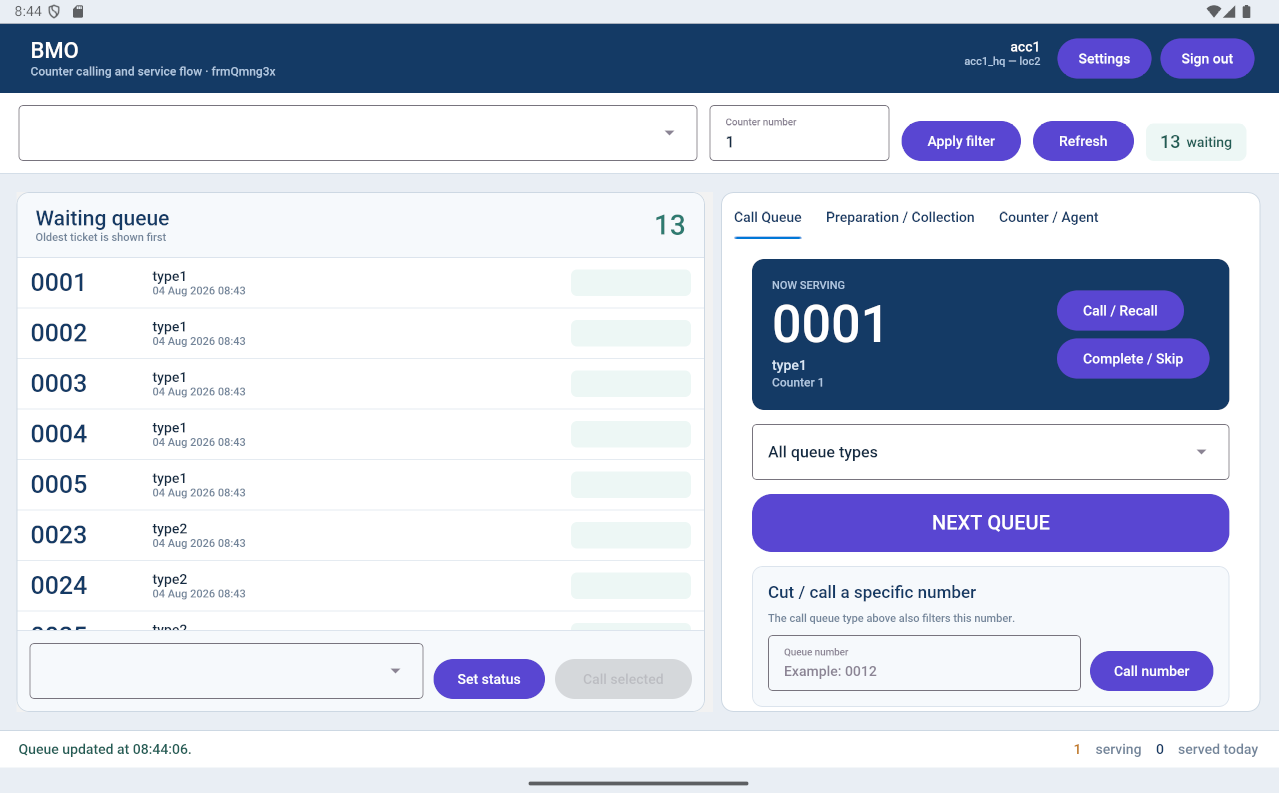
Once configured, every waiting ticket is tagged with its type. Staff see the whole queue in one list, can filter the call queue down to a single type, or cut straight to a specific number — on the tablet manager, the Windows manager or in a browser.
- Waiting list shows the type beside every number
- All queue types filter to narrow the call queue
- Cut or call a specific number when you need to
- Counters served today counted per day, alongside the reset
Automatic, or by hand
Reset Everyday
Tick the box on the ticket type and the series restarts on its own each day. Set it once during installation and nobody needs to think about it again.
- Per ticket type, not all-or-nothing
- No morning routine for your staff
- Numbers stay short all year
Reset No — manual
The Reset No button zeroes a series on demand. Useful after a test run, a system move, or when you change how a service is numbered mid-year.
- On-demand, from the same settings screen
- Handy after testing before go-live
- Works whether or not daily reset is on
We set this up with you
Tell us the services your counters handle and we'll configure the ticket types, prefixes, formats and daily reset during installation — then show your staff how to change them.